Your Launcher Desktop - the Starter Layout, Shortcuts and Gadgets
The FastMediaSorter desktop is a grid of squares where you keep what you use every day: apps, your media folders, radio channels, a clock and the weather. This page shows how to switch it on, what it holds from the first minute, and how to add your own things.
Why You'll Love This
An old tablet on the kitchen wall, a car head unit, or simply a phone you want to feel calmer: instead of pages of app icons you want the clock, the weather, your photo folders and the radio, all on the first screen. The FastMediaSorter desktop is made for this. It can be your device's home screen, or a start window inside the app that leaves your usual home screen alone.
You do not start from an empty grid. A fresh desktop arrives already filled with useful things, grouped under headings, and every square can be changed with a long press.
- FastMediaSorter in the Standard edition or the noLegal edition. The launcher is not part of the Lite, Photos, Legacy, VR and FOSS editions - see The seven editions of FastMediaSorter.
- A few minutes to look around. No root access and no extra app are needed.
- Optional: one or two resources you already added, so the desktop can offer your own folders.
Choose how the desktop opens
Go to Settings, the General tab, and tap Primary startup window. Three choices appear:
- Device home screen - FastMediaSorter becomes the home screen you see after unlocking. Android asks you to confirm: allow it, or on older Android versions pick FastMediaSorter and tap Always the next time you press Home.
- Desktop as primary window - the desktop opens when you start the app from its icon, but your usual home screen stays as it is. A good way to try the desktop without committing.
- Main screen - the app opens on its main screen with your resources, as before.
You can also choose this on the first page of the welcome wizard when you install the app.
Settings, General tab, the Primary startup window dialog open with its three choices.
Look at what a fresh desktop already holds
The first time the desktop opens it is already arranged for you, in named sections - rows grouped under a heading:
- Main - a clock, a web search field, the weather and shortcuts to your media: all your pictures, videos, music and documents.
- Gadgets - small live blocks such as the translator and, on phones and tablets, a storage readout.
- Resources - your own folders, when you have added some.
- Google - the Google apps installed on the device, including Google Keep and Gemini when you have them.
- Apps - up to 25 of your other installed apps, from messengers to games. How many depends on the grid size, and no app appears twice.
- App functions - one tile for each program you have switched on: Streams, Quick Camera, Quick Voice, Calculator, Network Monitor, Camera OCR, Screen Recording, Link Download, Game, System Information and Wear Companion.
- Settings - the app's own settings, the launcher settings and quick ways into the Android system settings.
The layout is not the same on every device. The desktop looks at your device profile and the size and shape of the screen: a phone, a tablet, a TV or an e-reader each get their own section order, number of items and number of screens.
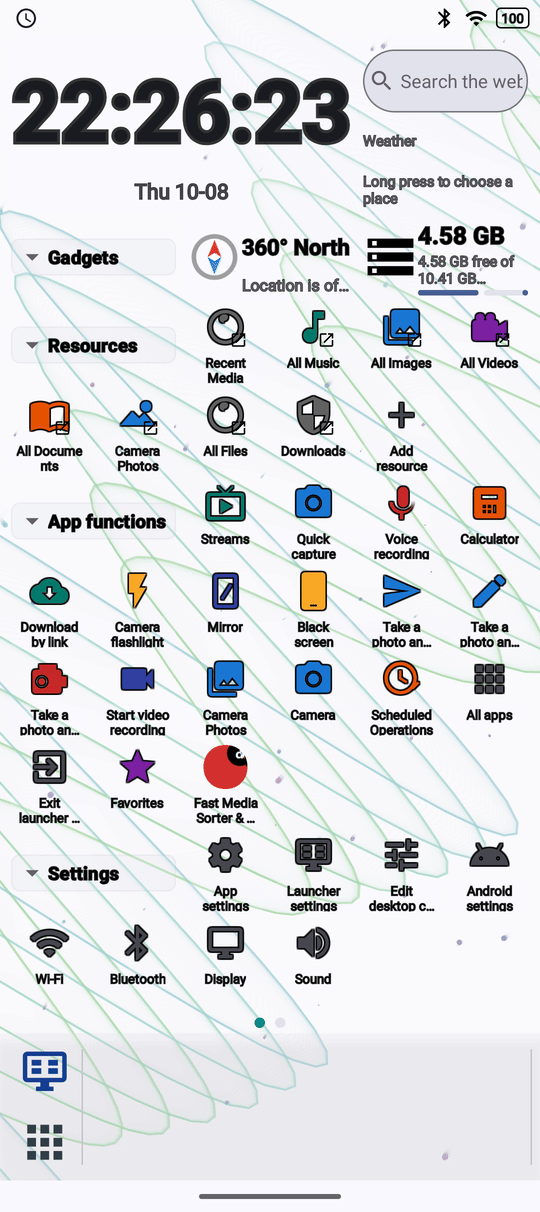
Open things with one tap
Each square with an icon and a caption is a shortcut. Tap it and what it points to opens: an app starts, a folder opens in the file browser, a program appears, a system setting opens.
Captions sit on a light plate, so they stay readable over any wallpaper, and icons line up along the top of each row even when one caption takes two lines. Removing a shortcut never deletes the thing it opens.
The full list of your installed apps is always one step away in All apps: open the Start menu on the taskbar, then All apps. Apps there are shown as a scrollable grid of icons with their names. More about the list is in Using the desktop dock and taskbar.
Put something new on an empty square
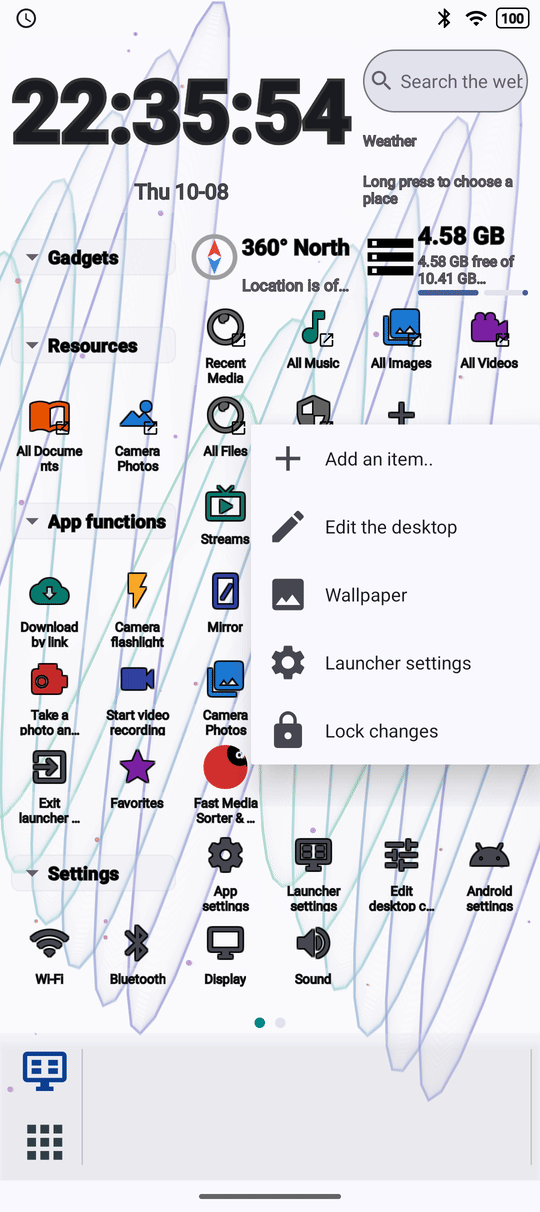
Touch and hold an empty square on the desktop. A short menu appears:
- Add an item..
- Edit the desktop
- Wallpaper
- Launcher settings
- Lock changes
Tap Add an item.. and choose what goes there: App, App feature, My resource, Stream, Android setting, Gadget, Launcher action, Scheduled operation or a new section. For one of your folders you then choose how it opens: Browse, Slideshow or Play. The new square lands exactly where you pressed.
Use Edit the desktop and the + button next to Done - it drops the new item into the first free place, or into a new row below everything. See Arranging the desktop.
Add live gadgets
A gadget is a small live block that shows fresh information. Choose Gadget in the add menu to see them all. Some that people use most:
- Weather - the current weather for a place you name. Touch and hold it to choose the place; no location permission is needed, and the data comes from Open-Meteo. Metric or US units follow Unit system in Settings, General.
- Search - a web search field. Type, press the search key, and the results open in your browser. Nothing you type is kept on the desktop.
- Translator - an offline translator. Its caption shows the language pair from the app's translation settings; tap the caption to change it, or swap the two languages for the moment. See Translating extracted text.
- Audio window, Video window, Document window and Image window - play or show something from one of your resources right inside the square.
- YouTube and YouTube Music - the web pages of these services inside a square.
A gadget can be moved, resized and removed like any other square. The full gadget catalog is in Desktop gadgets.
The add-item picker switched to Gadget, list of gadgets visible.
Keep a radio or TV channel on the desktop
Choose Stream in the add menu and pick a channel from your list in Streams. Tap its square to start playing.
Touch and hold a channel square for its menu. Edit opens the same window as in Streams, where you change the address, the title, the type of media and the preferred audio and subtitle language. Add window to desktop places a live Stream window of this channel in the first free square; a short message says Window added to desktop, or No free space on desktop. More ways to keep stations close are in Shortcuts, the stream widget and the streams panel.
Bring in the app's widgets and other apps' shortcuts
The widgets FastMediaSorter offers for the Android home screen - calculator, camera, photos, reading, music, recorder, game, OCR, favorites, scheduled tasks and Now Playing - can sit on this desktop too, working the same way. Go to Settings, the Management tab, and tap Add a gadget to the launcher desktop; the chosen one goes into the first free place. The button is there only while the desktop is your home screen. Details are in Placing, resizing and styling gadgets and widgets.
Other apps can put their own shortcuts here, exactly as on any other home screen: when a browser or a messenger offers "Add to home screen", the shortcut lands on this desktop.
Put every installed app on the desktop at once
Open the launcher settings - from the long-press menu, from the Start menu, or through Settings, General, System launcher settings. In the System group tap Import all installed apps.
Every app gets a shortcut in one section called Desktop, in alphabetical order. The section grows as needed. Running the import again refills the same section rather than adding a second one. It cannot copy the layout of the launcher you used before - Android does not let any app read that.
What You Get
Your desktop opens the way you chose - as the home screen or as the app's start window - already filled with a clock, weather, search, your media and your apps, and you can put any app, folder, channel, gadget or setting on any square with a long press.
Tips and Troubleshooting
- Switched a program on later? Its tile appears in App functions by itself, in both the upright and the sideways layout, without a restart. A tile you removed by hand is not brought back, and switching a program off leaves its tile where it is.
- Want the starter layout back? Reset launcher settings in the System group of the launcher settings returns the desktop, the pinned icons and the wallpaper to their first state, after a confirmation.
- On a VR headset the choices that would make the app the headset's home screen are hidden, because the headset keeps its own.
- The desktop disappeared after a restart of a car head unit? Some head units force their factory home screen on every start. Choose FastMediaSorter again; if it does not stay, that device does not allow another home screen.