All editions except Photos; the 3D choice in the Control window only in VR and noLegal
Subtitles, Audio Tracks, Sound Balance and 3D
Pick the soundtrack and subtitles of a film, make them readable, balance the sound between your ears, change speed and colors, and watch 3D films on an ordinary screen.
Why You'll Love This
A film downloaded from the internet often carries several soundtracks - the original language, a dubbed one, a commentary - and several sets of subtitles. The phone does not know which one you want. This recipe shows where to pick them, how streams pick your language by themselves, and a few extras that live in the same window: loudness, the balance between the ears, the playback speed, colors and 3D.
- FastMediaSorter in the Standard, noLegal, Lite, Legacy, VR or FOSS edition. The Photos edition does not play video.
- A video with more than one soundtrack or with subtitles - for example an MKV film.
- Color controls (HUE and Light) are in Standard, noLegal, Legacy and VR.
Open the Control window
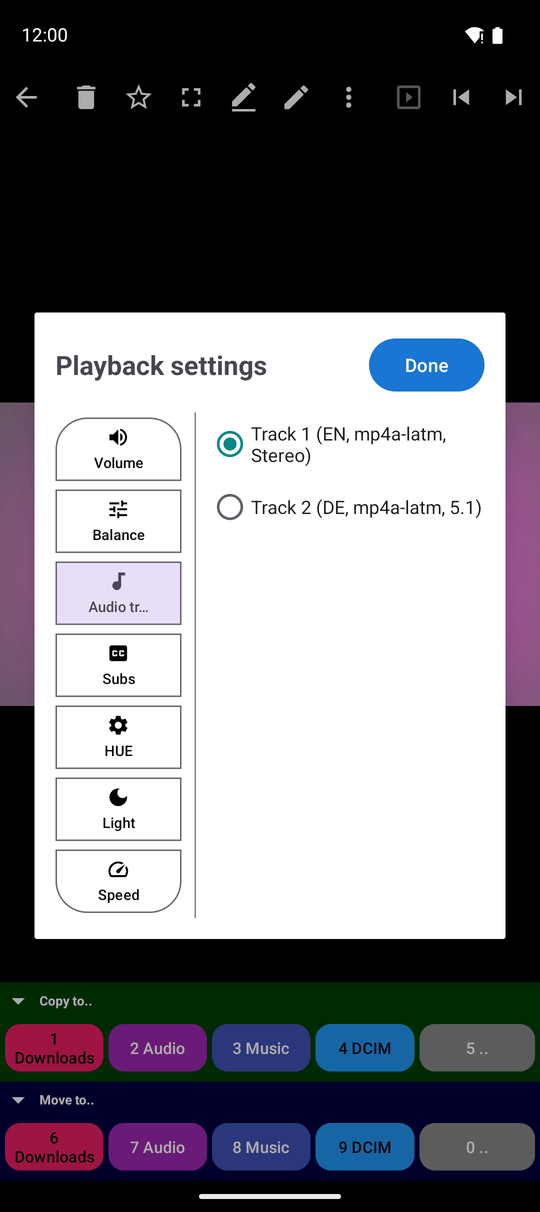
Start a video in the video player and tap Control on the command panel. A compact window opens over the video. Its sections are listed along the side in portrait and along the top in landscape: Speed, Volume, Audio track, Subs, Balance, HUE, Light and, in some editions, 3D.
The window shows only what makes sense for this video. A file with one soundtrack has no Audio track section, a file without subtitles has no Subs. For internet streams the color sections disappear, and for live broadcasts the speed does too, because a live picture cannot be sped up. Tap Done to close the window; Reset returns the section you are in to normal.
Switch the language of the soundtrack
Open Audio track. Every soundtrack is listed with its language, its format and the number of channels, for example "English, AC3, 5.1". Tap the one you want; the sound switches at once without restarting the film.
Some formats cannot be played by every phone. Such tracks are marked in the list. If none of the soundtracks can be played, the film plays without sound and the app says so once - "Audio format not supported - playing without sound" - so you know the file is fine and it is the phone that cannot decode that sound. For Blu-ray files the message also names the formats it found.
For streams the app can pick your language by itself: set Audio language for streams in Settings, the Media tab, section Streams. When a stream offers a soundtrack in that language, the player chooses it, and a track you pick for one channel is remembered for that channel.
Turn subtitles on and make them readable
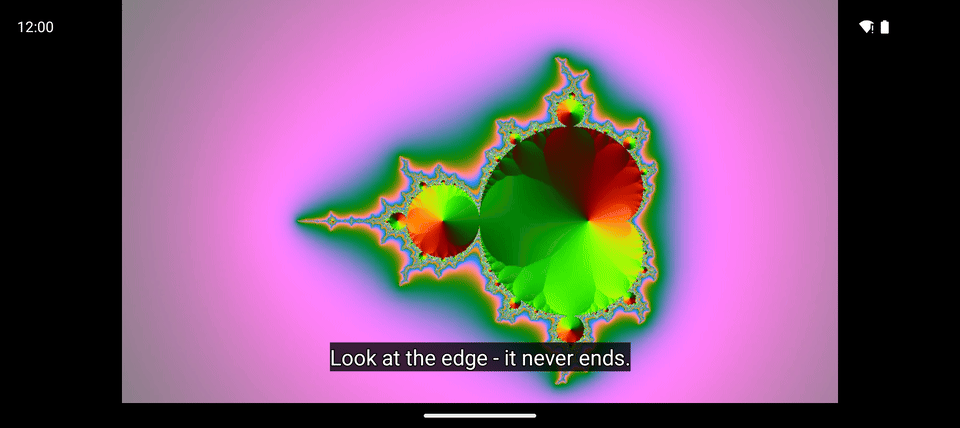
Open Subs and pick a language, or Off to hide them. If the file has none, the section says "No subtitles available".
Subtitles share their lettering with the text the app recognizes in pictures. To make them bigger or change the typeface, go to Settings, the Media tab, section Translation, digitization (OCR), and set OCR Font Size (from Minimum to Huge) and OCR Font Family (for example Default, Serif or Monospace). The player applies them to every video, whether it plays full screen or with the command panel. Both settings stay available even when OCR is off or your device cannot run it.
Loudness and the balance between the ears
Volume sets how loud this player is, separately from the phone volume: Mute, 50% or MAX, or anything in between with the slider.
Balance moves the sound between the left and right ear: 50/50 is even, 30/70 favors the right, 70/30 the left. It helps with one weak earbud or a hearing difference, and it applies everywhere the app plays sound - videos, music and background listening. A file with a single sound channel (mono) plays normally; there is nothing to balance, and the section says "Mono audio - no channels to balance".
Speed and colors
Speed has quick buttons 0.5x, 1.5x and 2x, and a slider from 0.1x to 3x, including 0.3x. The player remembers the last speed and uses it for the next video.
HUE turns all the colors of the picture around the color wheel, Light makes the picture brighter or darker. Both change only what you see, never the file, and the player remembers them for next time.
Watch 3D films on an ordinary screen
A 3D film stores two pictures, one for each eye, side by side (SBS) or one above the other (OU). On a normal screen that looks like a double image. FastMediaSorter recognizes such films: when the file itself says it is 3D, the player trusts that label; otherwise it guesses from the shape of the picture, and ordinary widescreen films are not mistaken for 3D.
With Show 3D content from one eye turned on (Settings, the Player tab; on by default) a 3D film shows the picture of one eye, filling the screen.
In the VR and noLegal editions, with 3D and VR switched on in the settings, the Control window has a 3D section where you can choose the format yourself: Auto-detect, Side-by-Side (SBS), Over-Under (OU) or Mono (Disabled), plus the 360° and 180° formats. For the full headset experience see spatial 3D and 360 cinema.
What You Get
The film plays in your language with subtitles you can read from the sofa, the sound sits where your ears want it, and 3D films look right on the phone.
Tips and Troubleshooting
- Want the stream's language instead? Streams have their own Audio language for streams and Subtitle language for streams - see live streams.
- Silence with a film that plays on a computer? The film probably carries only soundtracks your phone cannot decode, often DTS-HD or TrueHD. A converted copy with AAC sound will play.
- Speed buttons missing? You are watching a live stream. Recorded videos always have them.