Network folders - all except Lite; cloud storage - all except Lite and FOSS
Adding Network Folders and Cloud Storage as Sources
Add a shared folder on a home computer or NAS, an FTP or SFTP server, or a Google Drive, Dropbox or OneDrive folder as a resource, switch whole groups of them off, and let the app's caches keep them quick.
Why You'll Love This
The family photo archive is on the old computer in the living room, the films are on a NAS in the corridor, and last year's pictures went to Google Drive. You do not have to copy all of that onto the phone to look through it or sort it. Add each place once as a resource, and it opens like any folder on the phone.
This page is the overview: what kinds of places you can add and what the app does to keep them quick. The step-by-step setup for each kind of server has its own page, linked below.
- Network folders and FTP or SFTP servers: every edition except Lite. Cloud storage: Standard, noLegal, Photos, Legacy and VR - not Lite and not FOSS. See The seven editions.
- For a network folder: the phone and the computer or NAS on the same Wi-Fi or network, and the user name and password of the shared folder.
- For an FTP or SFTP server: its address, and a user name with a password or an SSH key.
- For cloud storage: a Google, Dropbox or Microsoft account.
Add a shared folder from your home network
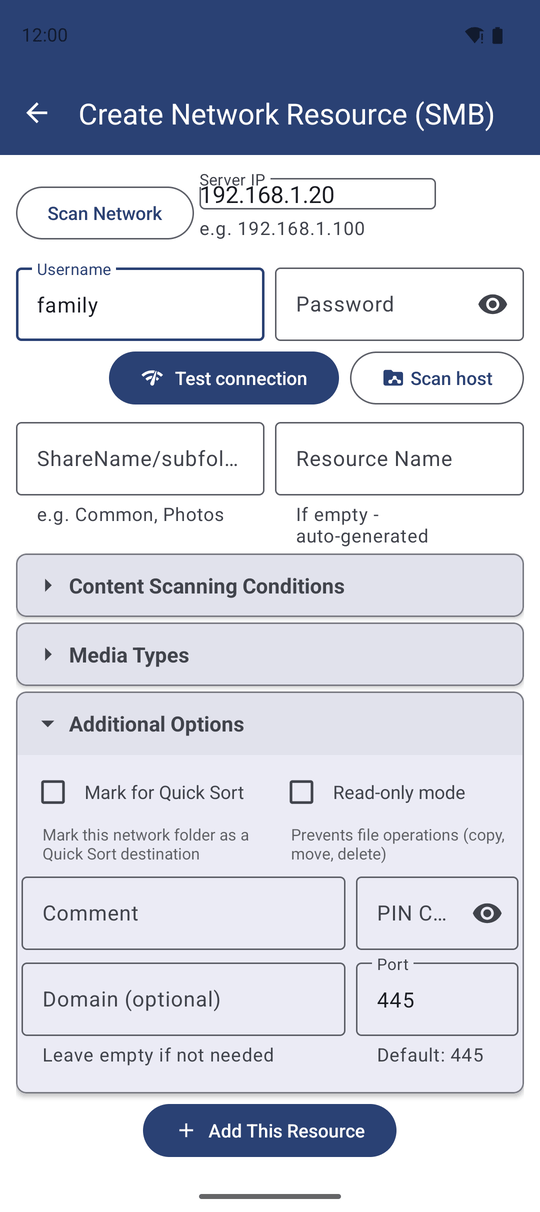
On the main screen tap Add, then Network Folder - "Add SMB network shares". The Create Network Resource (SMB) screen asks for:
- Server IP, for example
192.168.1.100. Not sure? Tap the network scan button and pick your computer or NAS from the list of devices the app finds. - Username and Password of the shared folder, and a Domain only if your network uses one ("Leave empty if not needed").
- Port - leave
445unless your administrator told you otherwise.
Tap Scan host to list the shared folders on that computer, tick the ones you want and add them. Test connection checks the name and password without adding anything. The full walk-through, including how to share a folder on Windows, is in Connecting SMB/Windows shares.
Add a folder on an FTP or SFTP server
Tap Add, then SFTP / FTP. On the Add S/FTP Resource screen choose SFTP or FTP at the top; the port fills in by itself (22 for SFTP, 21 for FTP). Enter the Host, the Username and the folder path, for example /home/user/media or just /.
For SFTP you can sign in with a Password or with an SSH Key: paste the key or tap Load File, and add the key's passphrase if it has one. Tap Test Connection, then Add Resource. More in Connecting SFTP and FTP servers.
Add a Google Drive, Dropbox or OneDrive folder
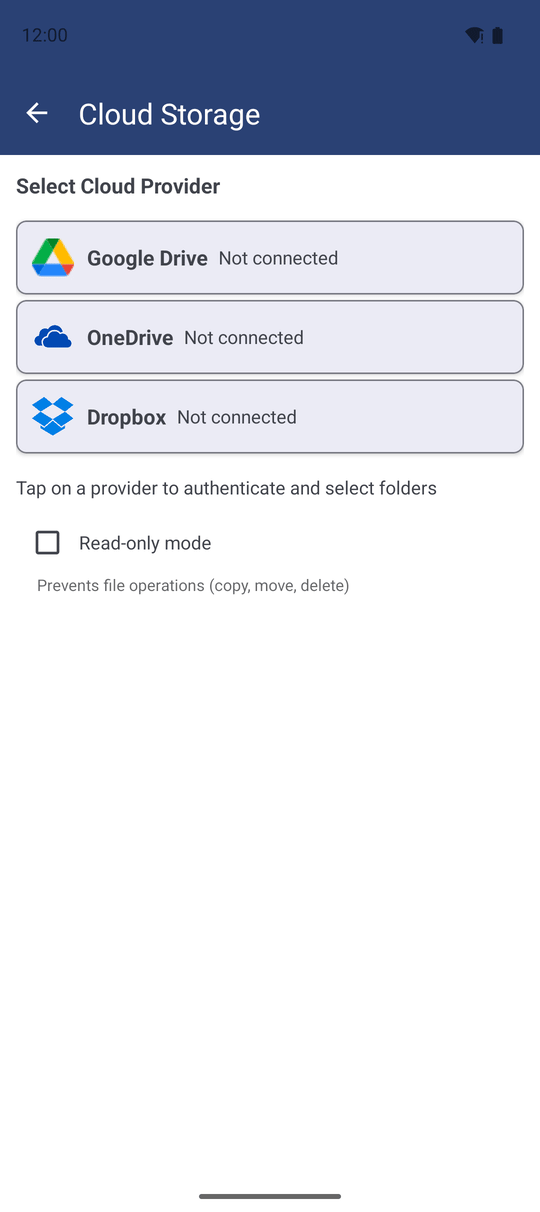
Tap Add, then Cloud Storage - "Tap on a provider to authenticate and select folders". Tap Google Drive, Dropbox or OneDrive, sign in with your account in the window that opens, then pick the cloud folder you want to see in the app.
Each chosen folder becomes a resource of its own. The details for each provider are in Google Drive integration and Dropbox and OneDrive.
Hide a whole group of places for a while
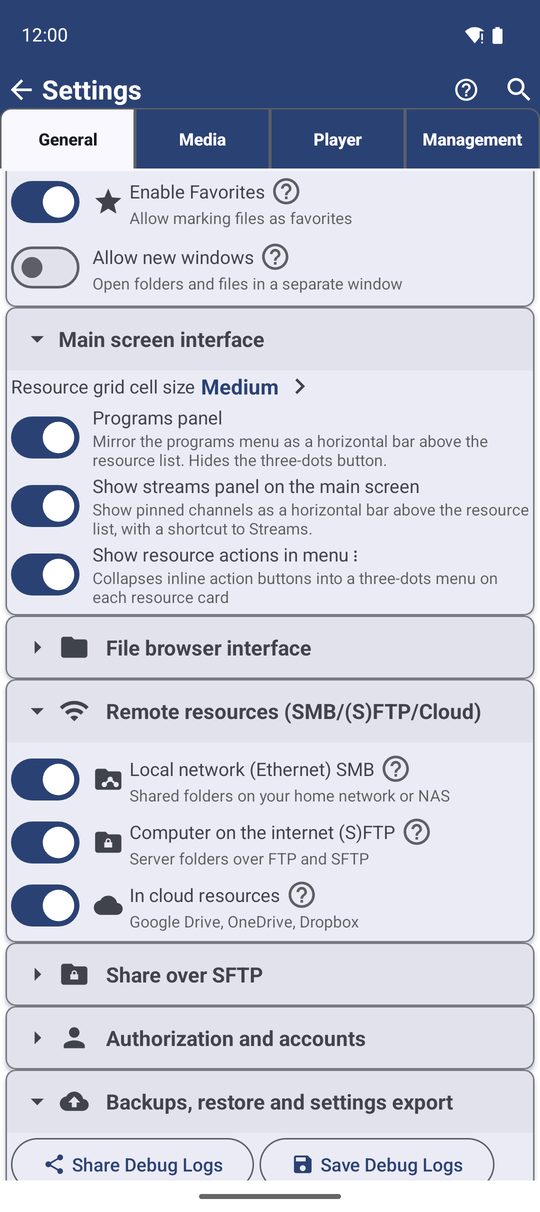
If you do not use network or cloud places at all, or want them out of sight for a trip, switch them off as a group. Open Settings, the General tab, and find Remote resources (SMB/(S)FTP/Cloud). There are three switches:
- Local network (Ethernet) SMB - shared folders on your home network or NAS.
- Computer on the internet (S)FTP - server folders over FTP and SFTP.
- In cloud resources - Google Drive, OneDrive, Dropbox.
When you turn a group off while you still have resources of that kind, the app asks "Hide these folders?" and explains: they are hidden, not deleted. They come back, with all their settings, the moment you turn the switch on again. While a group is off, its card also disappears from the Add Resource screen.
Why network folders open quickly the second time
The app does three things by itself so that network and cloud places feel almost as fast as the phone:
- It remembers the file list. When you open a network folder again, you see its files at once, while the app quietly checks the server for changes in the background.
- It keeps small previews. Thumbnails of network and cloud files are saved on the phone, so the tiles do not have to be downloaded again every time. For a folder with more than 10,000 files the app switches previews off by itself and shows file-type icons instead; you can change this with Disable thumbnails in the resource's settings.
- It keeps a playback copy when streaming is not possible. Some servers cannot send a video piece by piece. Then the app downloads it into a streaming cache first, so it plays smoothly and can resume after a lost connection.
Decide how long the streaming cache is kept
Open Settings, the General tab, and find Background sync, network and cache:
- Streaming cache TTL - how long a cached file is kept after you last played it: Off, 1 day, 3 days, 7 days or 30 days. Older copies are removed by themselves.
- Streaming cache cleanup - what happens when you leave the player: Ask each time, Auto-delete or Auto-keep.
- Clear streaming cache - removes all cached copies now. The confirmation shows how much space you get back. When there is nothing to clear, the app says "Streaming cache is empty. Nothing cached, nothing wasted."
Moving to a new phone
When you move to a new phone with Android's own "copy apps and data" transfer, your Google Drive and Dropbox sign-ins come along. On the first start on the new phone these cloud resources simply open - there is no message and nothing to tap.
OneDrive keeps its sign-in in a place the app cannot copy, so on the new phone you sign in to OneDrive once more. If you signed out of a provider on the old phone before the move, that provider is not carried over either.
What You Get
The computer in the living room, the NAS and your cloud folders sit on the main screen next to the phone's own folders. Lists open instantly, previews appear without waiting, and you decide how much space the streaming cache may take.
Tips and Troubleshooting
- A slow shared folder recovers on time. When an SMB connection starts to falter while several files load at once, the app notices every timeout and reconnects when it should, instead of missing some of them.
- A wrong SFTP path says so. An SFTP resource whose folder no longer exists on the server shows a plain 'not found' message instead of a general error.
- A red or unavailable network resource usually means the computer is asleep or the phone left the home Wi-Fi. Wake the computer and pull down the list to refresh.
- Everything in one move to a new phone. Besides the automatic cloud sign-in, you can carry all resources, including network passwords, in a backup file - see Sharing and backing up your resources.
- Copying between the phone and the network works in both directions - see Copying, moving and deleting files.
- Not sure which way of connecting your own devices fits you? The media exchange portal compares the home network, the exchange server and live broadcast, and shows which program does what on each device.