Sorting Files into Destinations with Quick Sort
Turn your folders into numbered, colored destinations, then copy or move the photo or video you are looking at into one of them with a single tap or a number key.
Why You'll Love This
Three thousand photos from the summer, all in one camera folder. You want the good ones in "Best of 2026", the family ones in "For grandma", the receipts in "Taxes" and the rest left where they are. Dragging files one by one in a file manager would take a week.
Quick Sort turns this into a rhythm: look at a photo, tap the button of the folder it belongs to, and the next photo is already on the screen. Each folder you sort into is a destination - a resource with its own number and color.
- FastMediaSorter in any edition. Network destinations need any edition except Lite; cloud destinations any edition except Lite and FOSS.
- The folders you want to sort into, added as resources the app can write to - see Adding folders from this device. Read-only resources cannot be destinations.
Meet your first destination - Downloads
On first launch the app already makes the phone's Downloads folder destination number one, so Quick Sort works out of the box: there is always at least one place to send a file.
Turn a folder into a destination
There are three ways, use whichever is closest:
- When adding a folder, tick Add to Quick Sort (for a network folder or an SFTP server: Mark for Quick Sort).
- On the main screen or in the file browser, open the resource's three-dots menu and tap Add to Quick Sort.
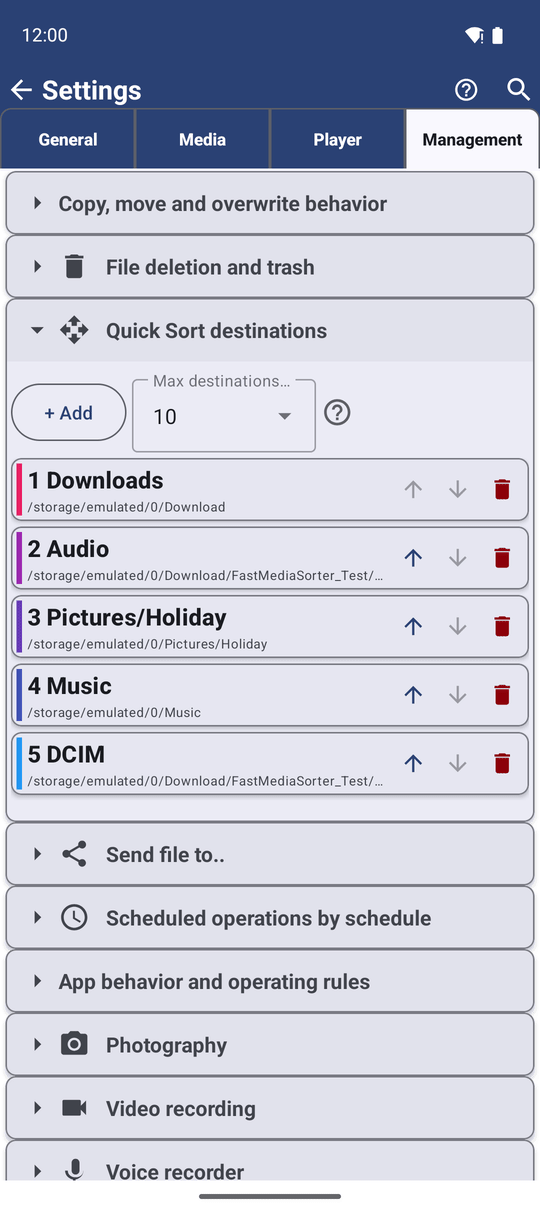
- Open Settings, the Management tab, the group Quick Sort destinations, and tap + Add. The list offers every resource you can write to that is not a destination yet.
Each new destination gets the next free number and its own color from a set of ten.
Arrange, recolor and limit your destinations
In Settings, Management, Quick Sort destinations you see all destinations in their order. For each one:
- Tap the color square to pick another color - handy when "Delete later" should be red and "Keep" green.
- Use the up and down arrows to change its place, and so its number.
- Tap the delete button to take it off the list ("Remove Destination"). The folder and its files stay; it only stops being a destination.
Max destinations (1-30) decides how many destinations you can have; the default is 10.
Sort while you look at files
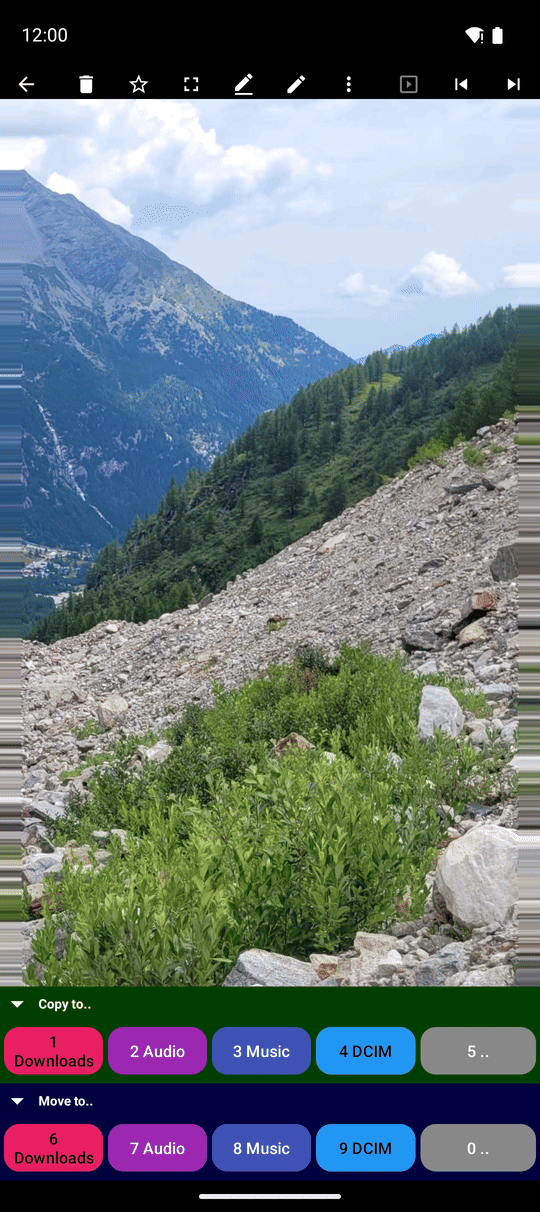
Open a folder full of unsorted photos and tap the first one. In the player, the command panel shows two rows of colored buttons, one for each destination:
- Copy to.. - puts a copy into that destination and leaves the original where it is.
- Move to.. - moves the file there; it leaves the current folder.
Tap a destination button and the file goes there straight away - no extra question. With Go to next file after copying (on by default) the next photo appears at once, so you can keep a steady pace: look, tap, look, tap. After a move the next file appears by itself, because the moved one has left the folder. The folder you are sorting from never shows a button of its own.
The transfer runs in the background, so even a large video to the home computer does not hold you up.
Make the panel fit your screen
- Tap the Copy to.. or Move to.. title to fold that row away when you only copy or only move. When both are folded, they sit side by side in one line.
- The buttons share the width of the screen by themselves: a few destinations get wide buttons, many destinations get more rows of smaller ones, and the text shrinks so that every name stays readable - on a phone, a tablet or a TV.
- Each button keeps its destination's color, with dark or light text chosen so the name is always easy to read.
Send a file to a folder that is not a destination
At the end of each row there is a .. button. It opens Android's folder window: pick any folder, and the file is copied or moved there just once, without adding the folder to your destinations.
Sort with number keys on a keyboard or TV remote
With a keyboard, a TV remote or a game pad, each visible button gets a small number badge. Keys 1 to 9 and 0 (for the tenth) fire the buttons in order - first all Copy to.. buttons, then the Move to.. buttons. Fold the Copy row away, and the numbers go to the Move buttons. The key badges show the keys you actually assigned, if you changed them in the keyboard settings (see Keyboard, D-pad and Android TV control).
Same names, and changing your mind
- When the destination already has a file with the same name, the file is left out by default, and nothing at the destination is replaced. Turn on Overwrite existing file when copying or Overwrite existing file when moving in Settings, Management, Copy, move and overwrite behavior if the new file should replace the old one.
- Tapped the wrong button? A short message with Undo appears at the bottom right after the copy or move. Tap it to take the last step back.
What You Get
The summer's three thousand photos are sorted in one evening: the best in "Best of 2026", the family ones in "For grandma", the receipts in "Taxes" - each with one tap, in colors you chose, and the camera folder is finally tidy.
Tips and Troubleshooting
- Colors are a memory aid. Give the same color to destinations that belong together, and sorting becomes a matter of reflex.
- Copy first, move later. When you sort for somebody else, copy - your own folder stays complete.
- Tap zones instead of buttons. You can also let taps on parts of the screen copy or move - see Touch zones in Video playback and navigation.
- Many files at once are copied from the file browser instead - see Copying, moving and deleting files.