Translating Extracted Text
Recognized text, a PDF page, an EPUB chapter or a text file reads in your language with one tap, entirely on the phone - as a card of its own, or painted right over the original words.
Why You'll Love This
Once words are on the screen - recognized from a photo, printed on a PDF page, or sitting in an EPUB chapter - FastMediaSorter can turn them into your own language right there, using Google's on-device ML Kit translation. The internet is needed only to download each language model once from Google; the text you translate is translated on the phone and is never sent anywhere.
Two different starting points feed the same translator: a picture goes through OCR first so there is text to translate, while a PDF page, an EPUB chapter or a text file is already text and skips straight to translation.
- FastMediaSorter in an edition with translation: Standard, noLegal, Legacy or VR. The Lite, Photos and FOSS editions do not translate text.
- Enable Translation switched on in Settings - or on the setup wizard's functionality page. The first time, this downloads the Translation Module extension; see first launch and setup and downloadable extensions.
- To translate a picture: the OCR Engines extension too, since a photo or a scan has to be read before it can be translated - see recognizing text on pictures.
- Something to translate: a picture open in the image viewer - see viewing photos and gestures - a PDF page, an EPUB chapter, or a text file.
- A phone, tablet, laptop, desktop or Chromebook. Translation is not offered on a TV, a car head unit or an XR headset - see the last step.
If the source language was only guessed and most of what came back could not be trusted, no plate is drawn at all: "The text is in a script the recognizer was not set up for, so no translation is drawn over the picture. Choose the Original Language in the translation settings." Pick the language explicitly (next step) and try again.
Translate the text in a picture
Open the three-dots menu and tap Translate (in landscape the button may sit right on the command panel bar). After "Translation started.." the recognized lines come back translated, in one of two looks depending on the Translation result in blocks setting:
- Off - the translation appears in a card of its own, below or over the picture, kept separate from the original.
- On - each translated line is painted directly over the original words on an opaque plate, so the picture reads in your language in place. A line whose words sit far apart - text on both sides of a photo, separate speech bubbles - is split and translated as separate pieces instead of one strip across the picture. A plate that reaches the bottom of the screen grows upward instead of being cut off, and a translation taller than the whole screen shrinks its type first, so it is always fully drawn.
A photographed shop sign with the translation overlay on, each recognized line replaced by an opaque plate with the translated words.
Translate a PDF page or an EPUB chapter
A PDF page - including a scanned one with no text layer, read through the same offline OCR pass - and an EPUB chapter both translate the same way: open the three-dots menu and tap Translate. A PDF page follows the card-or-overlay look from the step above; an EPUB chapter always opens in a resizable panel over the text, with its own font size separate from the book's. See reading PDF documents and reading EPUB books for turning pages and finding the button.
EPUB book open, Translate tapped in the three-dots menu, target language set.
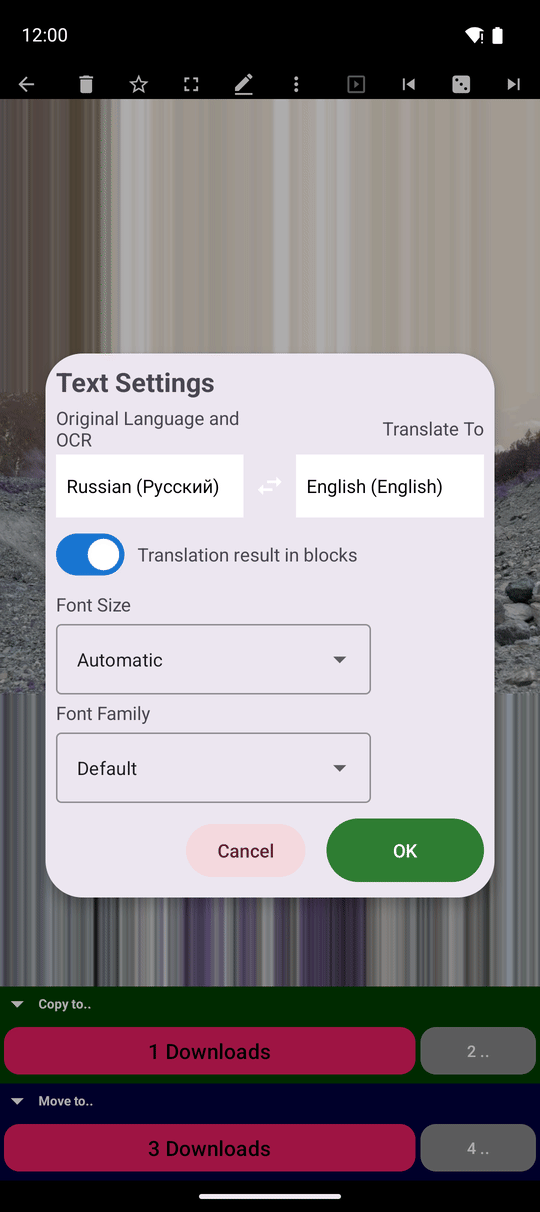
Open Text Settings and choose your languages
Open the three-dots menu and tap Text Settings to open the language and look dialog shared by images, PDFs, EPUB chapters and text files. Tap Original Language and OCR or Translate To to open a searchable language list ordered by your interface language, with Auto available as the source. A swap button next to the two rows exchanges the source and target language when the swap makes sense - handy when you translate back and forth between the same two languages.
The same dialog holds Translation result in blocks (the card-or-overlay switch from the first step), Font Size and Font Family for the translated text. Confirming the dialog also turns translation on, if it was off.
Why the second translation is instant
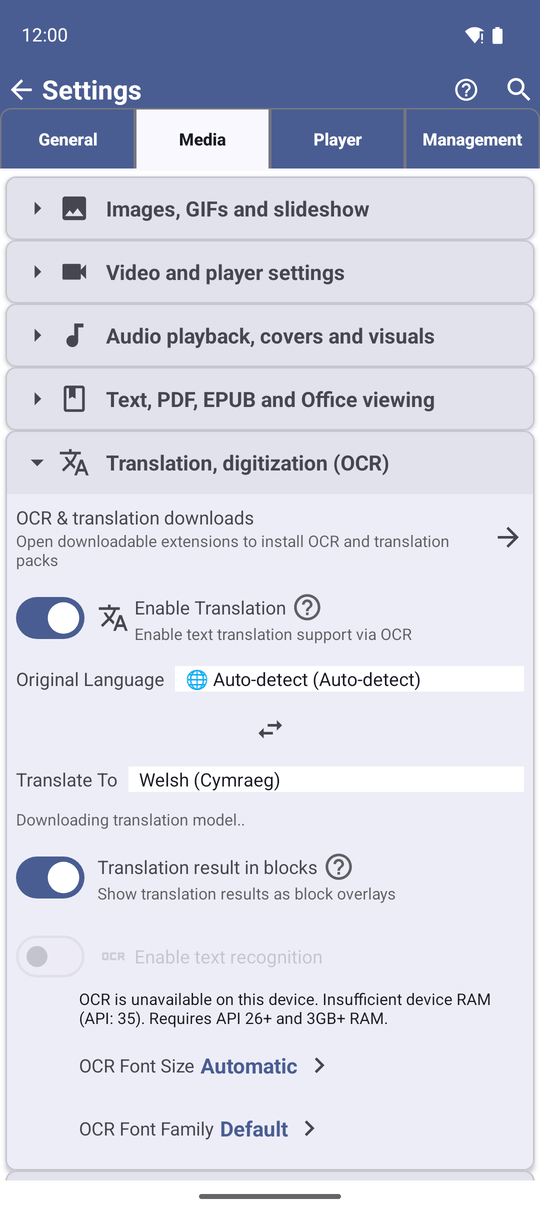
The first time you pick a new target language, FastMediaSorter downloads its translation model in the background as soon as you choose it, not while you are waiting for a result - you may briefly see "Downloading translation model.." and then "Translation model ready.". A failed download shows "Couldn't download the translation model. Try again." with a Retry button.
A page or a picture you translate once stays translated in memory for the rest of the session: reopen the same page and the translation is already there, with no repeat recognition and no repeat download.
Where translation is not offered
On-device translation is licensed for phones, tablets, laptops, desktops and Chromebooks. On a TV, a car head unit or an XR headset, the Translate button stays visible but disabled, with "Translation is not licensed for this type of device" as the explanation, and the translator widget and launcher gadget are not offered on those devices at all.
A translated result carries a small, screen-reader-readable Google credit, since the translation itself comes from Google's on-device model.
TV emulator, a picture open, the disabled Translate button focused.
What You Get
Recognized text, a PDF page, an EPUB chapter or a text file reads in your language without the internet - as a card of its own or painted right over the original words, in the font and size you like. Switching languages downloads what it needs quietly in the background, and translating the same page twice costs nothing the second time.
Tips and Troubleshooting
- Haven't recognized any text yet? Start with recognizing text on pictures.
- Want to send the translated text to someone? See sharing and exporting files.
- Reading Cyrillic text that keeps coming out wrong? Pick the source language explicitly instead of Auto - see the language step above, and recognizing text on pictures for why Auto can misread Cyrillic letters.
- Only need the language pack, not a tour of the extensions screen? Jump straight to downloadable extensions and language models.