Phone side - Standard and noLegal; sending network resources and syncing from the watch - the full watch version (sideload only)
Keeping the Phone and the Watch in Step - Network Folders and Watch Settings
Choose which network resources the watch gets, push them, read what the sync reports, and set the watch up from the phone's Wear Companion window - media types, slideshow, screen, color scheme, background and power saving.
Why You'll Love This
You already set up your NAS, your PC share or your home server on the phone - the address, the user name, the password. Typing all of that again on a screen the size of a coin is nobody's idea of fun.
Wear Companion sends those network resources to the watch for you, and it is also the comfortable place to set the watch up: which kinds of files it shows, how the screen looks, when it saves battery. Change something on either device, and the other one catches up.
- The watch app installed and Wear Companion switched on - see installing and pairing the watch.
- At least one network resource on the phone: an SMB, FTP or SFTP folder. How to add one is in network and cloud sources.
- For sending resources: the full version of the watch app. *Sideload version only* - see the noLegal edition.
- The watch and the phone near each other, with the watch awake.
Choose the resources for the watch
Open the Wear Companion window and, in Watch operations, tap Resources for the watch.
Only network resources can be sent - "Only network resources (SMB, FTP, SFTP) can be sent to the watch, so only those are listed. Tick the ones to send." Folders on the phone itself stay on the phone; the watch reaches those through its Phone section instead, and cloud storage never goes to the watch.
Tick the ones you want, or tap Select all. Nothing is ticked on your first visit: the phone never pushes your whole library by surprise. Your choice is remembered for the next sync.
No network resources yet? The list says so and points you back to the main screen to add one.
Phone, Resources for the watch screen, three network resources, two ticked, Select all button visible.
Push them to the watch
Back in Watch operations, tap Push to Watch. A short animation shows the resources flying over, and the result names what happened:
- Sent 3 resource(s) to the watch - they are now in the watch's Resources section, ready to open without the phone.
- Removed 1 resource(s) from the watch - you deleted a resource on the phone since the last push, and the watch let it go too. If you edited that resource on the watch after the phone deleted it, the watch keeps it and it is not counted.
- Watch did not confirm. It may be off or out of range. - wake the watch, bring it closer and push again.
- No resources are marked for the watch yet. - go back to step 1 and tick something.
The password travels with the resource, so the watch connects on its own the first time you open it.
Phone, Wear Companion, push finished, dialog shows sent and removed counts.
Or ask for them from the watch
*Sideload version only.* You can start the same exchange from your wrist. On the watch, open Resources and tap Sync from Phone. The watch waits up to ten seconds for the phone to answer; the back gesture works the whole time, so you are never stuck on a waiting screen.
If it cannot reach the phone, the watch tells you why: "No phone is connected. Pair your phone and install FastMediaSorter on it." or "Could not ask the phone. Try again." If the phone's Wear Companion switch is off, the watch names that switch instead of blaming a missing phone.
Resources you add on the watch travel the other way too. When they reach the phone, the Wear Companion window shows Watch resources received - for example "2 resources from Galaxy Watch" - with Import and Dismiss.
Round watch, Resources section, Sync from Phone chip at the top, synced SMB and SFTP resources listed.
Edit on either side - the later edit wins
Changed the password of a resource on the watch, and the port of another on the phone? Both edits survive the next sync. Each device remembers when it last changed each resource, the sync allows for the two clocks not showing quite the same time, and the device that edited later wins. A resource that exists on only one side is added to the other, never deleted.
Your home server moved to another address? The phone sends every address it knows for a resource and marks the one that answers now, and the watch tries them in turn, so an SFTP share made on the phone keeps working on the watch.
Updated only one of the two apps? A sync between an older phone app and a newer watch app, or the other way round, still goes through: anything the older side does not know about is simply treated as not set, and every resource in the batch arrives.
Set up the watch from the phone
Below Watch operations, the window holds the watch's own settings, in the same four groups and the same order as the watch's Settings screen. Each switch row has the switch on the left, a title and a line that says what it changes on the watch; a ? button next to some of them explains more.
- Media types - Audio, Video, Images, Documents and Show streams. Turn a type off, and the watch neither shows nor syncs files of that kind. Folded, the group lists the types that are on.
- Slideshow - whether photos move on by themselves, and the Slideshow interval (seconds): 3, 5, 10, 15, 30, 60 or 120, or Enter custom value. Folded, it reads, for example, "On, every 5 s".
- Screen - Home and Resources view and Files view (List, Grid 2 or Grid 3), Watch background, Watch color scheme and Keep watch screen on.
- Other - Album art (a cover picture for every synced song, which costs some watch storage), Disable animations, Watch power saving, Keep playing in background and Player panel auto-hide duration (s).
Watch power saving offers Off, Always on and thresholds of 10, 15, 20 and 30 percent in one line you scroll sideways. The watch decides by its own battery, not the phone's.
Phone, Wear Companion, Media types expanded, five switch rows with descriptions, Slideshow and Screen folded with summaries.
Give the watch a color scheme and a background
In Screen, Watch color scheme offers eight schemes: Dark, Light, Dark green, Dark blue, Dark red, Light green, Light blue and Light red. They are the same families the phone app uses, so you can dress both devices alike. Dark is the starting scheme.
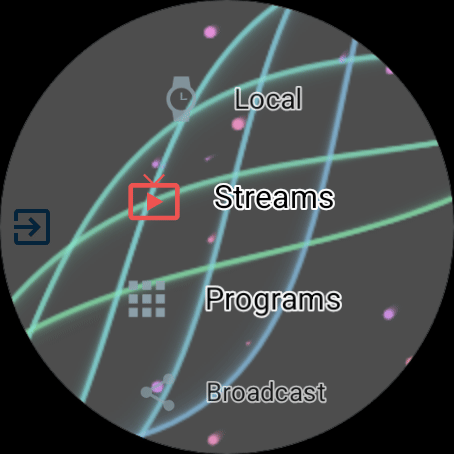
Watch background sets what is behind the lists on the watch: Branded animation (the moving waves), Branded still, Your image or Empty (black screen). For Your image, tap Choose image, pick a photo, and the phone sends it over - "Sending the image to the watch..", then "Image is on the watch." A preview shows how it will look. The watch's settings screens always stay on a plain background, and a light scheme lightens the background too, so text stays readable.
You can pick both on the watch as well, in its Settings, Screen. A change on either device reaches the other.
Send the settings and check the sync
Tap Sync settings in the title bar. The phone sends the settings and waits up to fifteen seconds for the watch to report back what it applied. The line under the button - Last synced: with the date and time - moves only when the watch really answers, so a tap that reached nothing leaves the old time standing. If the watch stays silent, a message says: "The watch did not confirm the settings. It may be off or out of range."
After the first sync, Watch operations also names the watch app that answered, such as Watch app: 2.62.0920.1415. When the watch app and the phone app come from different days, the line reads Watch app: followed by both versions, the watch's and the phone's, in a warning color - a hint to update the older one. A watch app too old to report its version shows Watch app: version unknown.
On the watch, Settings shows the same sync line. When it has never synced, or the last sync is several days old, the line turns into the warning color and you can tap it to sync right there.
Round watch, Settings root, Sync settings button, Last synced caption several days old in error color.
What You Get
The watch holds exactly the network folders you picked, opens them without the phone, and looks and behaves the way you set it up - whichever device you set it up on.
Tips and Troubleshooting
- The watch lists a folder you deleted on the phone? Push again: the result line tells you how many resources the watch removed.
- Settings do not seem to arrive? Look at the Last synced line - if it did not move, the watch did not answer. Open the watch app and tap Sync settings again.
- Watch storage filling up? Switch off Album art in the Other group; cover pictures are downloaded for every synced song.
- Want one photo on the watch, not a whole folder? Open it on the phone and send it with Send to.. - see putting files on the watch.