Thumbnail Caching and Indexing
The file browser loads thumbnails in the background, remembers a folder between visits, and updates itself when files change on the device - so a folder opens fast and stays accurate, even when it holds thousands of files.
Why You'll Love This
None of this is a screen you open on purpose. It is what happens just before a folder appears: a thumbnail loading in, a stored list coming back instead of being re-read from scratch, a new photo from the camera showing up without a tap on refresh. There is no setting called "caching" in the app, but you notice the difference the first time you open a folder of two thousand photos and it does not freeze.
This page has nothing to configure. It explains what the file browser is already doing for you, so a moment of loading - or the rare case where it needs to catch up - makes sense instead of looking like something is wrong.
- FastMediaSorter in any edition. This is background behavior, not a feature you switch on.
- At least one resource with enough files to notice a difference - a folder of a few hundred photos shows it better than a folder of five.
Why thumbnails appear almost instantly
Every kind of resource - a local folder, an SMB share, a cloud account, a PDF library - loads its thumbnails through its own loader built for that source, so a network folder does not wait on the same steps a local one does. Thumbnails pause while you scroll fast, so flicking through a long list does not fight the loader for every frame you pass, and a folder with a huge number of files switches thumbnail loading off automatically rather than grinding to a halt.
After a network resource finishes its regular sync, a background task quietly loads the thumbnails for the files it just cached, over Wi-Fi, skipping anything already loaded - so by the time you open that resource, more of it is ready to look at than what you last saw.
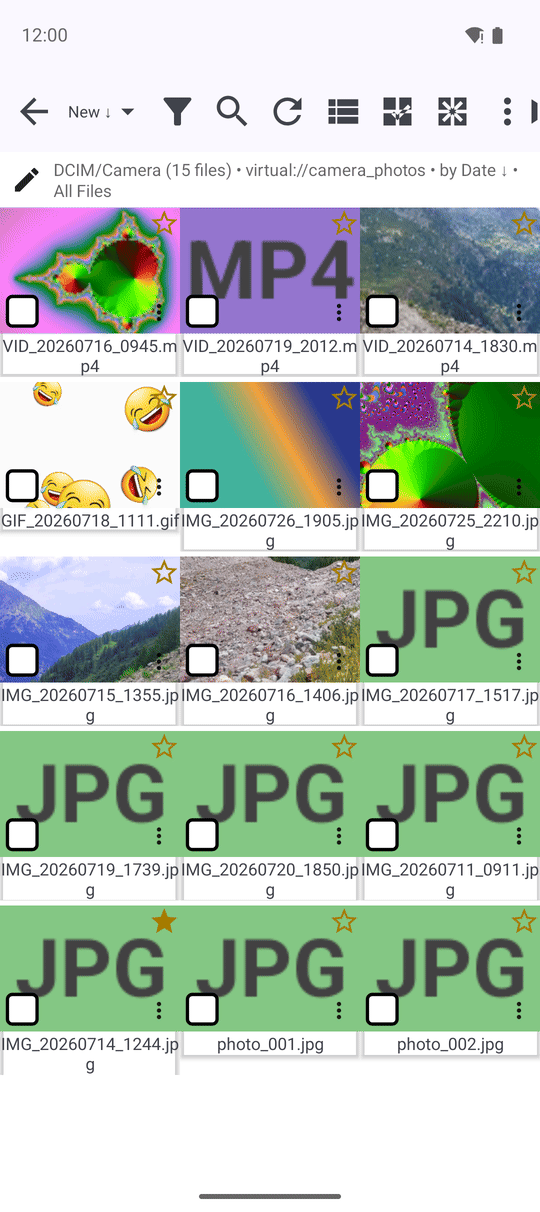
Reopening a folder is instant the second time
When it is turned on for a resource, the scanned file list is saved after the first look, so opening that resource again restores the list at once instead of scanning the folder from the start. This matters most on a slow network share or a folder with thousands of files, where a full re-scan is the part that used to make you wait.
The list updates itself when files change
For a local resource, the app keeps a light watch on the folder on disk. When something changes there - a file renamed outside the app, a new one dropped in - the list quietly updates in place, or reloads if the change is too large to patch, without you tapping refresh.
A second watch looks specifically at the device's own media collection, so a photo the camera just saved shows up in the matching resource on its own.
Big folders open in pages, and scrolling stays smooth
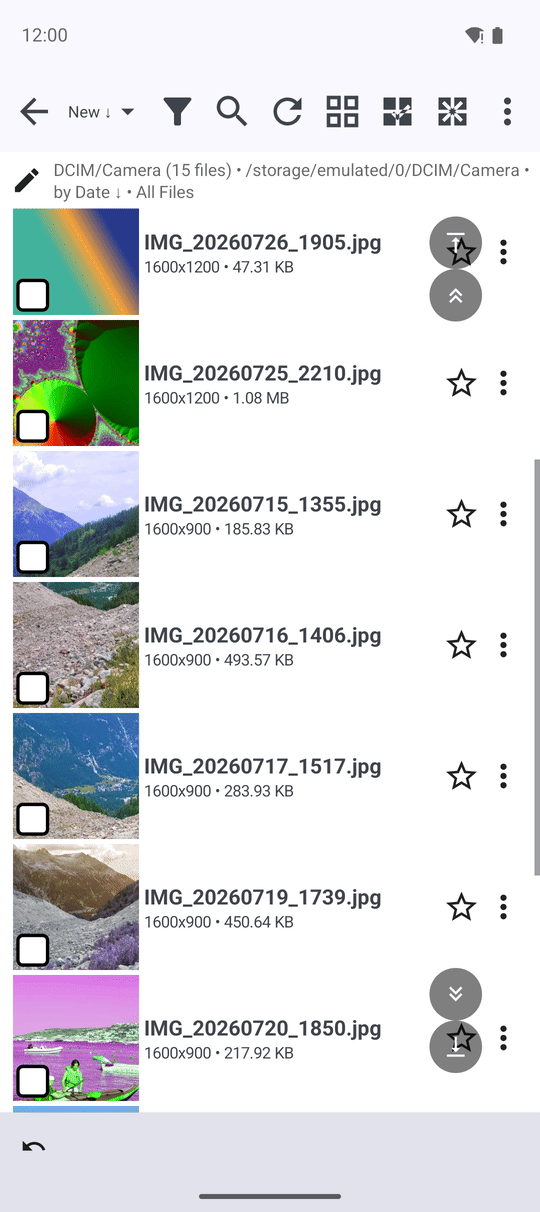
A folder with hundreds of files loads in chunks instead of all at once, so opening it does not spike the phone's memory. Scrolling through a large folder of images no longer reads files from disk on the same thread that draws the screen, which used to be a common cause of the app briefly freezing mid-scroll.
The paired phone resource on the watch pages the same way: past the first 50 items, a Show more button asks the phone for the next page instead of trying to fetch everything at once.
Broken and animated thumbnails are handled gracefully
A file that is truly empty, zero bytes, is recognized before the app tries to decode it: the folder shows its plain file-type icon right away and remembers not to try again, instead of asking for a thumbnail on every single re-scroll. Animated WebP and APNG files, which used to fall back to a broken-file icon, now show a still picture of their first frame instead, in the file list, in launcher folder previews and in the file details sheet.
Your file counts and folder stats stay accurate
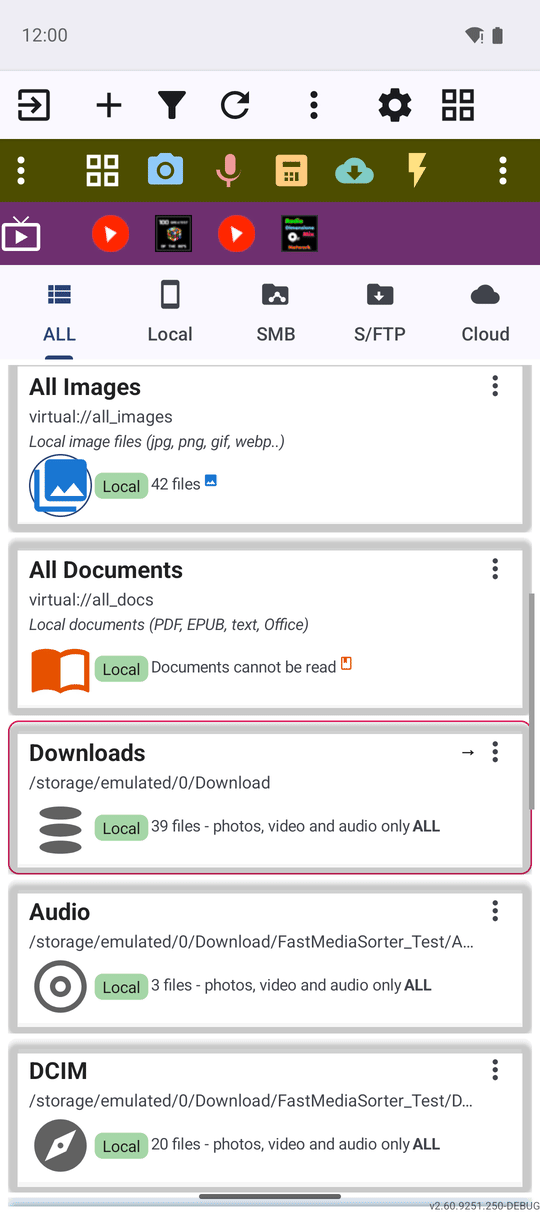
A resource's file count, subfolder count, and when it was last opened or last synced are written down whenever you browse it, and no longer reset to zero - or to nothing at all - just by leaving the screen or opening a file. A cloud resource records the time of its last sync the same way. See Navigating the Main Screen for where these numbers show up on a resource's card.
Built-in collections stay steady during a copy or move
Collections such as All Images or Recent Media are put together on the fly rather than pointing at one folder, which used to make them reload or blink empty for a moment while a copy or move was running in the background. They now stay loaded and steady through a transfer instead of flickering.
Keyboard focus stays visible when you select a row
Moving through the file list with a keyboard, a D-pad or a mouse draws a focus ring around the current row. Selecting that row - ticking its checkbox - used to make the ring disappear, since selection and focus shared the same highlight; now they are drawn separately, so you can always see both which row is selected and which one focus is on. More on keyboard and remote control: Keyboard, D-pad and TV navigation.
Your marks and settings survive an app update
A few small things used to have a chance of resetting when the app updated itself in the background: whether a file was marked hidden or read-only, what kind of file or transfer job a cached record referred to, and whether a copy or move that just finished was reported as done. All three now survive an update untouched - and if a record from before an update ever turns out unreadable, it is quietly dropped instead of making the app stumble.
What You Get
Folders open fast and stay fast: thumbnails load in the background, a folder you already scanned reopens instantly, the list keeps itself honest as files change on the device, and even a very large folder scrolls smoothly. Your favorites, hidden-file flags and resource statistics ride through an app update untouched.
Tips and Troubleshooting
- A folder feels slower than usual right after adding a lot of files? The background thumbnail preload only runs over Wi-Fi and only after the resource's regular sync finishes - give it a moment.
- Want to control what the list shows, not just how fast it loads? See Sorting, filtering and quick search.