Multi-Selection and Batch Operations
Tick as many files as you need with long-press and range-select, then run Copy, Move, Delete, Share or Archive on the whole batch at once from the file browser - or reach for a single file's own three-dots menu or a row swipe when that is all the job calls for.
Why You'll Love This
Some jobs need more than one file at a time - clearing out a folder of screenshots, moving a week of photos to a backup drive, sharing five files with a friend in one go. FastMediaSorter lets you tick as many files as you need and run one action on all of them at once, while a swipe or the row's own menu still covers the times you only want to act on a single file.
A copy or move of many files can take a while, especially over a network. It keeps running in the background once you send it there, so you are never stuck staring at a progress bar.
- FastMediaSorter installed, with a resource open in the file browser.
- Multi-selection, the grouped file menu, row swipe actions and the background transfer strip are part of every edition: Standard, noLegal, Lite, Photos, Legacy, VR and FOSS.
- Write access to the resource for Move, Rename, Delete and Archive - a read-only resource still allows Copy and Share.
Select more than one file
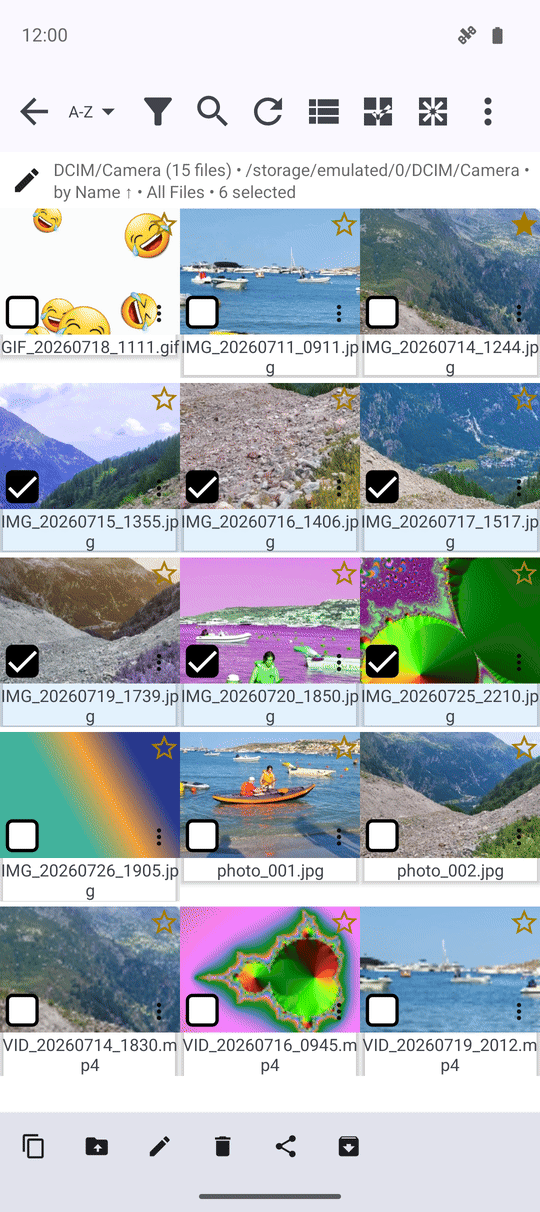
Long-press any file to enter selection mode. A checkbox appears on every row, and the file you pressed is already ticked. Long-press the checkbox of another file and every file between the two gets selected in one go, instead of ticking each one by hand.
Select All and Deselect All in the top bar cover the two extremes, and tapping a checked box again removes just that one file from the selection.
Run one action on the whole selection
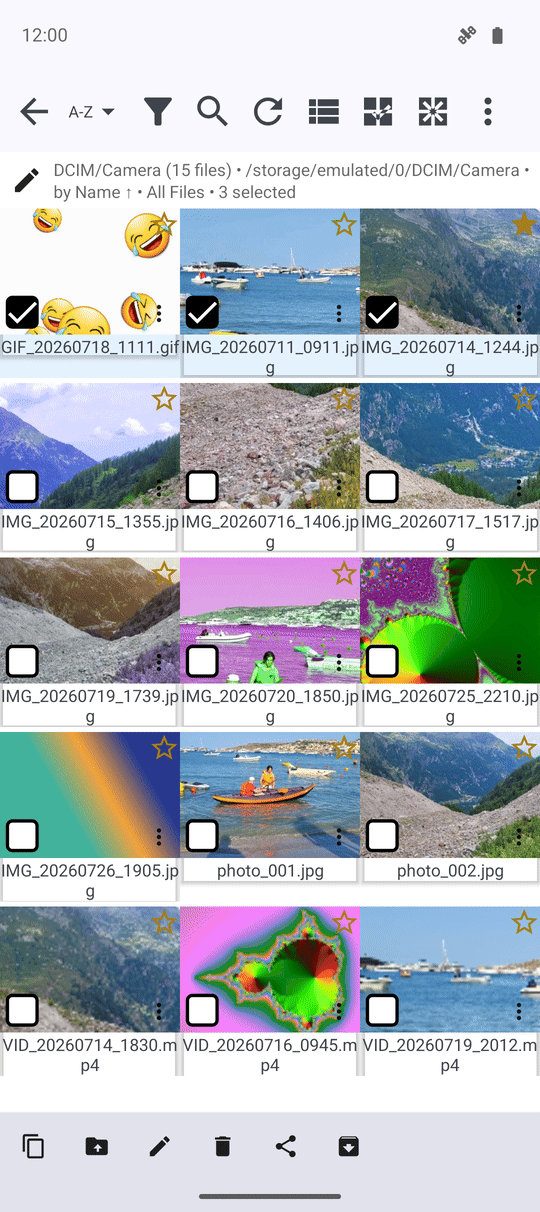
Once you have files selected, a bar of actions appears at the bottom: Copy, Move, Delete, Share and, on this device's own storage, Archive. Tap one and it runs on every selected file at once. If you deleted or moved something by mistake, Undo appears in the same bar right after, for as long as FastMediaSorter still remembers the operation.
Rename shows up on the bar too, but it only opens a dialog when exactly one file is selected - renaming a batch of files at once is a separate tool. Copying and moving need a destination resource to send files to; see Moving, copying and deleting files.
Act on one file with the three-dots menu
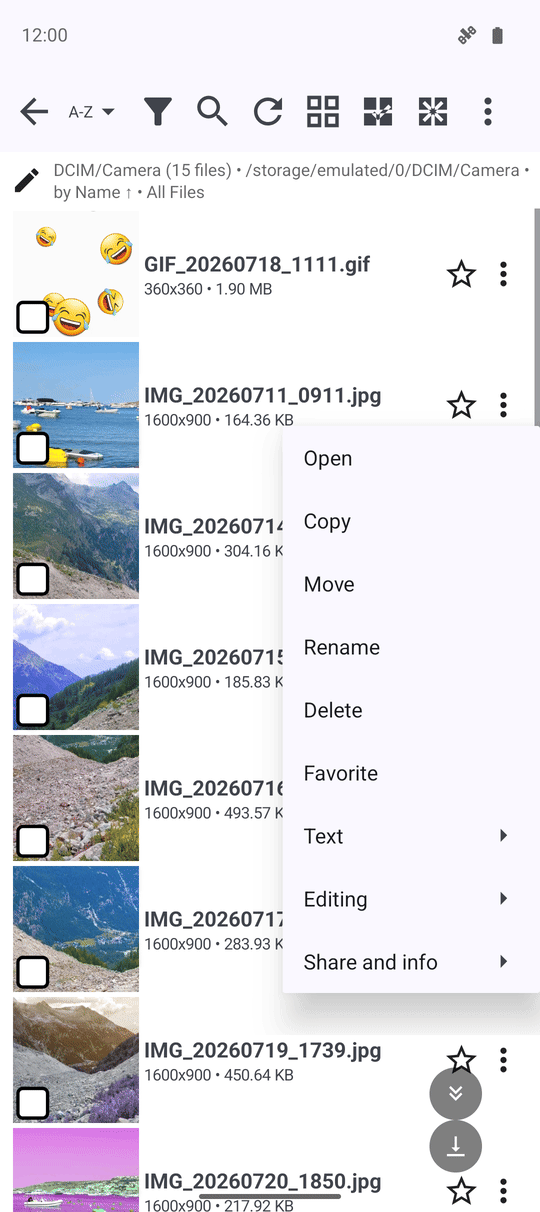
Tap the three-dots menu on any row to open its own menu instead. The most common actions - Open, Copy, Move, Rename and Delete - sit right at the top, one tap away. Everything else is grouped so the menu never turns into a long scroll: Organize (Favorite, Move up and Move down in the grid, Extract for a ZIP archive, Open in new window, and FileDO encryption), Text (search, translate and OCR for documents, books and images), Editing (crop, draw over, save a frame) and Share and info (send elsewhere, file information, print, lyrics). Only the groups that make sense for that file's type show up. A group with a single action is not a submenu at all: that action sits at the top level, which is why Favorite often appears right under Delete.
Swipe a row for an instant action
In the file list, a swipe left or right runs one action without opening any menu. Out of the box, one direction deletes and the other opens Send to.., but you can pick a different action for either direction - or turn a direction off - in Settings, the General tab, File browser interface section, under Swipe left action and Swipe right action.
While the row slides, it names the action it is about to run, so a swipe you did not mean to start can be let go before it fires. Deleting by swipe asks for the same confirmation as deleting from a menu, and an action turned off in Settings stays unavailable to the gesture too.
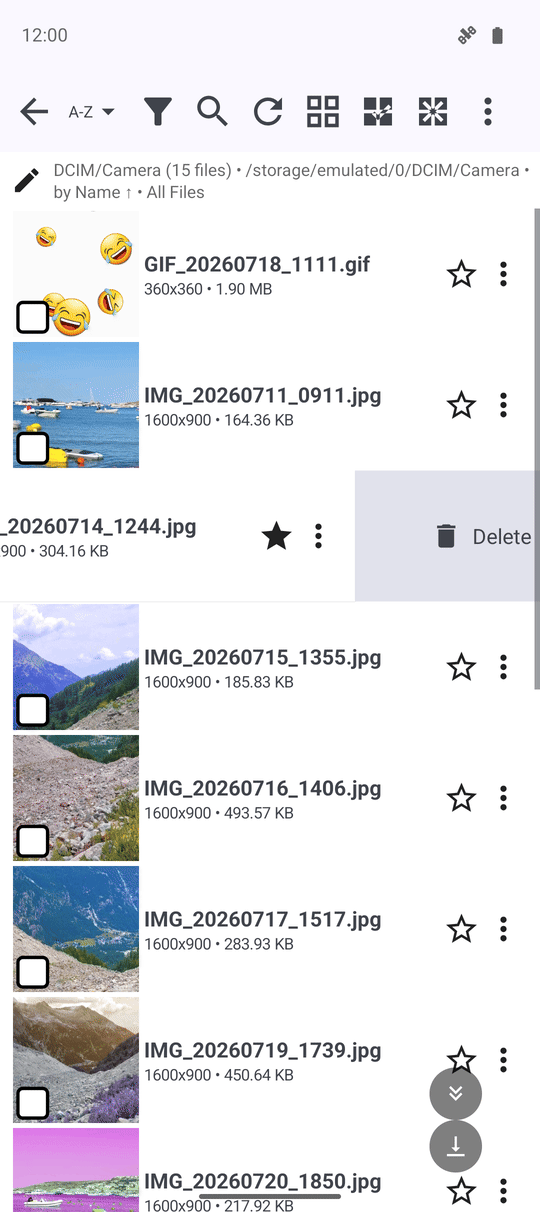
Row swipe actions work in every edition.
Let a big copy or move run in the background
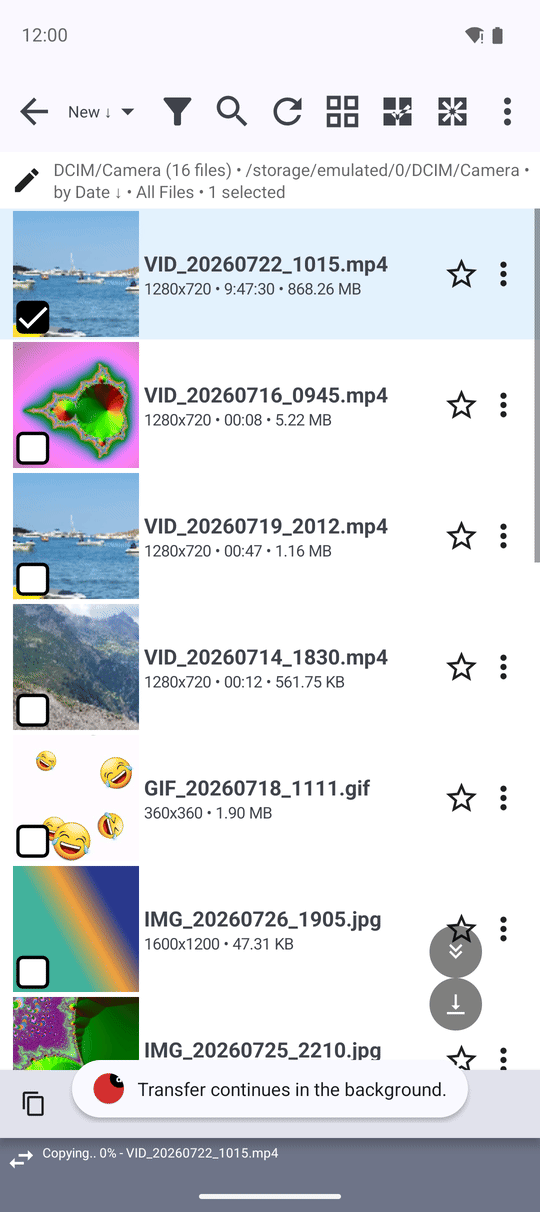
Starting a copy or move on a batch opens a progress dialog. Tap Background and the operation keeps running while you carry on browsing. A slim strip then sits at the bottom of Browse, naming the operation, the percent done and the file currently being copied - tap the strip any time to bring the progress dialog back.
What You Get
You can gather up a whole batch with long-press and range-select and send it off with one tap, reach for a single file's own menu or a swipe when that is all you need, and keep a big transfer going in the background without losing sight of it.
Tips and Troubleshooting
- Changed your mind about a swipe? Slide the row back before letting go, or turn that direction off in Settings if you never use it.
- Renaming several files at once? That needs its own tool - see Batch Renaming Patterns.
- Selecting with a keyboard or D-pad? Extend the selection up or down without touching the screen - see Keyboard, D-pad and TV navigation.
- Only seeing Copy and Share on the bar? Move, Rename, Delete and Archive need write access to the resource - a read-only resource hides them on purpose.