Renaming Files and Folders
Rename one file, a folder or several files at once in the file browser or in the player - on the phone, on network folders and in the cloud - and take a rename back with Undo.
Why You'll Love This
Camera names like IMG_20260712_183412.jpg tell you nothing a year later. "Anna's first bike ride.jpg" does. A good name makes a photo easy to find by search and easy to recognize in any app.
FastMediaSorter renames right where you look at your files: one photo in the player, or a whole batch in the file browser, each with its own new name. It works on the phone, on the memory card, on network folders and in cloud storage.
- FastMediaSorter in any edition: Standard, noLegal, Lite, Photos, Legacy, VR or FOSS.
- A resource the app can write to. On a read-only resource the Rename button does not appear.
Rename one file
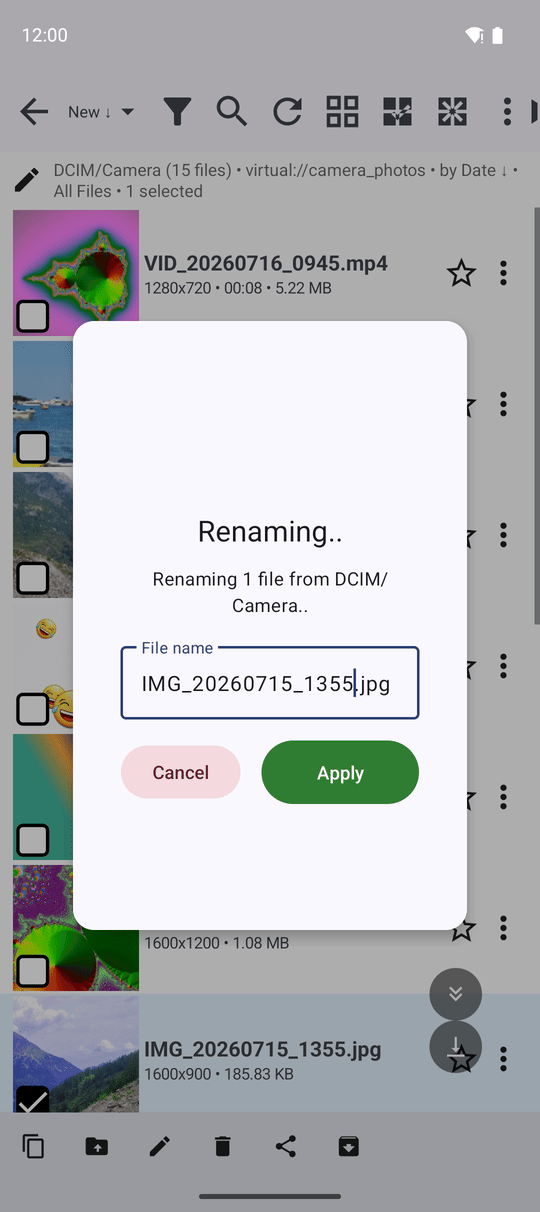
In the file browser tick the file and tap Rename in the bar at the bottom. The Renaming.. window shows the current name with the part before the extension already selected, so you can simply type the new name - the .jpg stays. Tap Apply.
If the name is empty, the app says "File name cannot be empty." If another file already has that name, you see "File already exists: .." and can choose a different one.
Rename several files at once
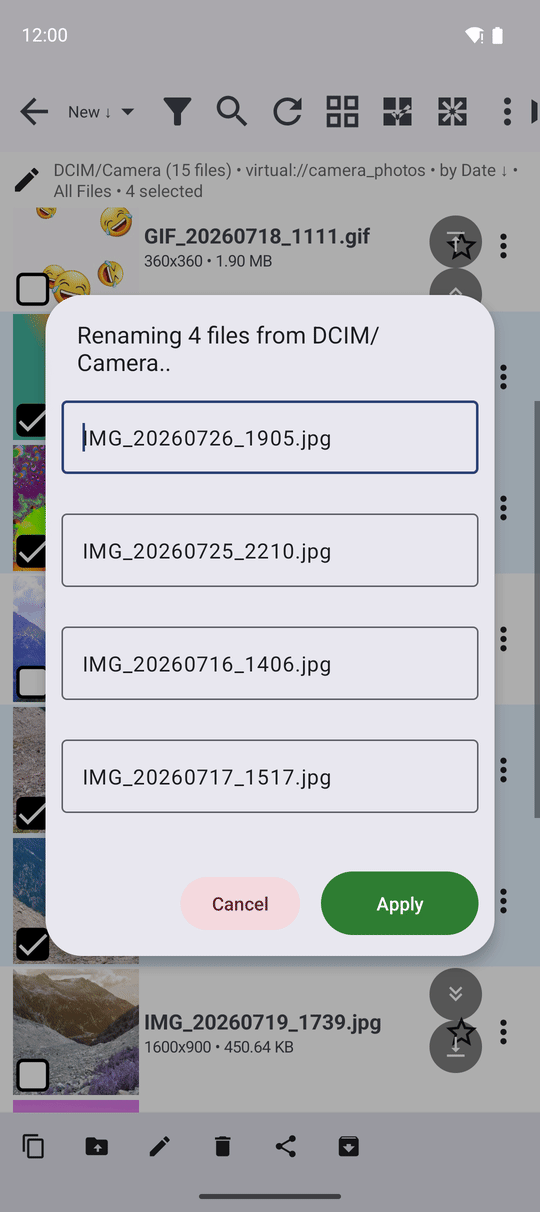
Tick several files and tap Rename. The window now lists every selected file with its own name field, filled with its current name. Go down the list and change the names you want - you can leave some as they are. Tap Apply, and all changes are made in one go.
If one of the new names is already taken, that file keeps its old name and the app lists it afterwards; the others are renamed.
Rename a folder
Folders are renamed the same way: tick the folder and tap Rename, or use Rename in the folder's own three-dots menu. Everything inside the folder stays as it is.
Rename while you look at a photo
In the player tap Rename on the command panel. The same Renaming.. window opens for the file on the screen. This is the quickest way to give good names to photos while you go through them one by one. With a keyboard you can also use its rename shortcut, and a touch zone can be set to rename.
Take a rename back
Right after renaming in the file browser, tap Undo in the message at the bottom or in the operations bar, and the old name comes back. Other apps such as the gallery see the new names too: after a rename the app tells Android about the change, so the file does not appear twice or vanish from them.
What You Get
The birthday photos are called "Anna's birthday 01.jpg" to "Anna's birthday 12.jpg", the scans have readable names, and you can find any of them later by typing a word into search.
Tips and Troubleshooting
- Keep the extension. Changing
.jpgto something else does not convert the file - it only confuses other apps. The app selects just the name part for you, so you do not remove it by accident. - Names on network folders follow the rules of the computer they live on; Windows, for example, does not allow characters like
?or:in names. - Want files in a certain order? Start their names with a number, like
01 Arrival.jpg,02 Beach.jpg- and sort the folder by name (see Sorting, filtering and quick search).