All editions (details per step)
Sending Files with the Send to.. Menu
One Send to.. menu reaches every receiver the app knows - messengers, Google Keep, Lens, Print, your paired watch and your own resources - with a switch for each one, honest progress for network and cloud files, a shortcut to download by link, and a QR code to hand an SFTP server to another phone.
Why You'll Love This
Every app that can receive a picture or a file wants its own way in: a share button here, a copy-and-paste there, a different menu in every screen. FastMediaSorter keeps one list instead - the Send to.. menu - and shows it from every screen where sending a file makes sense: the player, the file browser, the drawing editor.
It is the app's own address book of places a file can go, not a copy of Android's system share sheet - "Other apps" is simply one more entry on the same list, next to your messenger, Google Keep, the printer and your own resources.
- FastMediaSorter in any edition: the Send to.. menu itself is in all seven - Standard, noLegal, Lite, Photos, Legacy, VR and FOSS.
- The apps you want to send to (Telegram, WhatsApp, Instagram, Google Keep, Viber, Messenger, a short-video app) installed on this phone, for their row to appear.
- For sending straight to a watch: the Standard or noLegal edition with a paired Wear OS watch and its app open.
- For downloading a file before sending it: Standard, noLegal, Photos, Legacy or VR.
- For Download by link and sharing an SFTP resource as a QR code: see steps 6 and 7 for which editions carry each one.
Open the Send to.. menu
Wherever you see a share icon - the Share button in the player's command panel, the three-dots menu on a file in the file browser, the overflow menu of the drawing editor - it opens the same Send to.. list.
If only one receiver can actually take the file, it is sent right away with no list to tap through. Otherwise a sheet lists every receiver that is turned on, available right now and able to handle that kind of file, always in the same order, ending with a permanent Select resource.. row that copies the file to one of your resources instead of sending it anywhere.
On a narrow player screen the Share button sometimes does not fit the bar; tap the overflow  instead - the same receivers are there, one per row with its own icon.
Send to.. sheet open over a photo in the player, several receivers visible, Select resource.. row at the bottom.
Meet the receivers
- Other apps - opens Android's own share picker; works with any file type and is always there.
- Open in.. - opens the file directly in another app on this device.
- Email - attaches the file to a new email; offered once the phone has internet access.
- Print - sends images, GIFs, PDFs, text and office documents to Android's print system.
- Telegram, WhatsApp, Viber, Messenger and a short-video app such as TikTok - send straight to the installed app; each one is shown only when that app is actually on your phone, and falls back to Android's own picker if the direct hand-off fails.
- Instagram - takes one image, video or GIF at a time; picking several files sends the first one, with a note that it applies only to the first file.
- Keep: image / Keep: text - the two Google Keep receivers save a picture or a piece of text as a new Keep note; need the Keep app installed.
- Google Lens - opens the picture in Lens for a visual search; needs Google's own services.
- Watch - see step 4.
- Select resource.. - the row at the end of every list; copies the file to a destination resource (or a folder you pick) instead of sending it anywhere.
A receiver whose app is not installed, or that you have turned off, simply is not in the list - there is nothing to tap that will not work.
Photo open in the player, Send to.. opened and scrolled to the end, Google Lens switched on.
Turn a receiver on or off
Open Settings, the Destinations tab, and find the Send file to.. card. Every receiver has its own switch and a short help note explaining what it does. Turn one off and it stops appearing in every Send to.. list across the app, even if the app it points to is installed. What each switch does is described in the settings reference.
Settings, Destinations tab, Send file to.. card expanded, several switches visible, Google Lens off.
Send a photo, video or track straight to your watch
*Standard and noLegal editions, with a paired watch.*
Pick Watch from the Send to.. list and whatever you have open - a photo, a GIF, a video or a track - opens on the watch itself, with no need to go looking for the same file on the small screen. A file kept on a network drive or in the cloud is downloaded first, with progress you can cancel by going back.
The watch app has to be open on the watch for the file to arrive, and the phone tells you exactly what happened: opened on the watch, the watch is not reachable, the watch did not answer, the watch app is closed, the watch cannot show that type of file, or the file is over the 32 MB the watch accepts. Documents, text and EPUB files never offer the watch as a receiver.
Photo open in the player, a paired watch with the app open, Watch picked from Send to..
Sending a file that lives on a network drive or in the cloud
*Standard, noLegal, Photos, Legacy and VR.*
Sending a file straight from a network folder or cloud storage works the same as sending a local one - the app just needs a local copy first. You see "Downloading file.." with a progress bar for a network folder, or a spinner for a server that does not report progress, and the receiver opens as soon as the copy is ready. Pressing back cancels the download; a failure shows "Could not prepare the file for sharing." and nothing is sent.
Browse on an SMB resource, a video sent through Send to.., download about 40 percent done.
A single Send to.. download shows its own small dialog. Copying or moving a whole batch of files works the same way in the background - see Background transfers and their progress.
Grab a file from a link
*Standard, Lite, Photos and Legacy.*
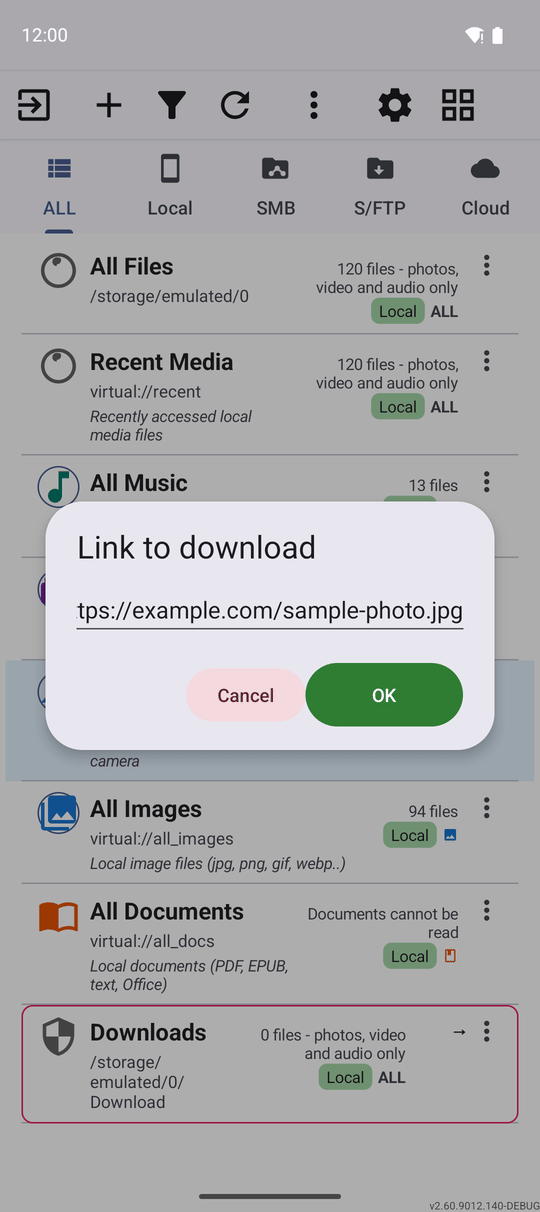
When link auto-download is switched on, the main menu shows Download by link. Tap it and a Link to download box opens, already filled in with whatever is on your clipboard - paste or type a different one if you need to. The file downloads the same way any link handed to the app does, straight into your chosen folder.
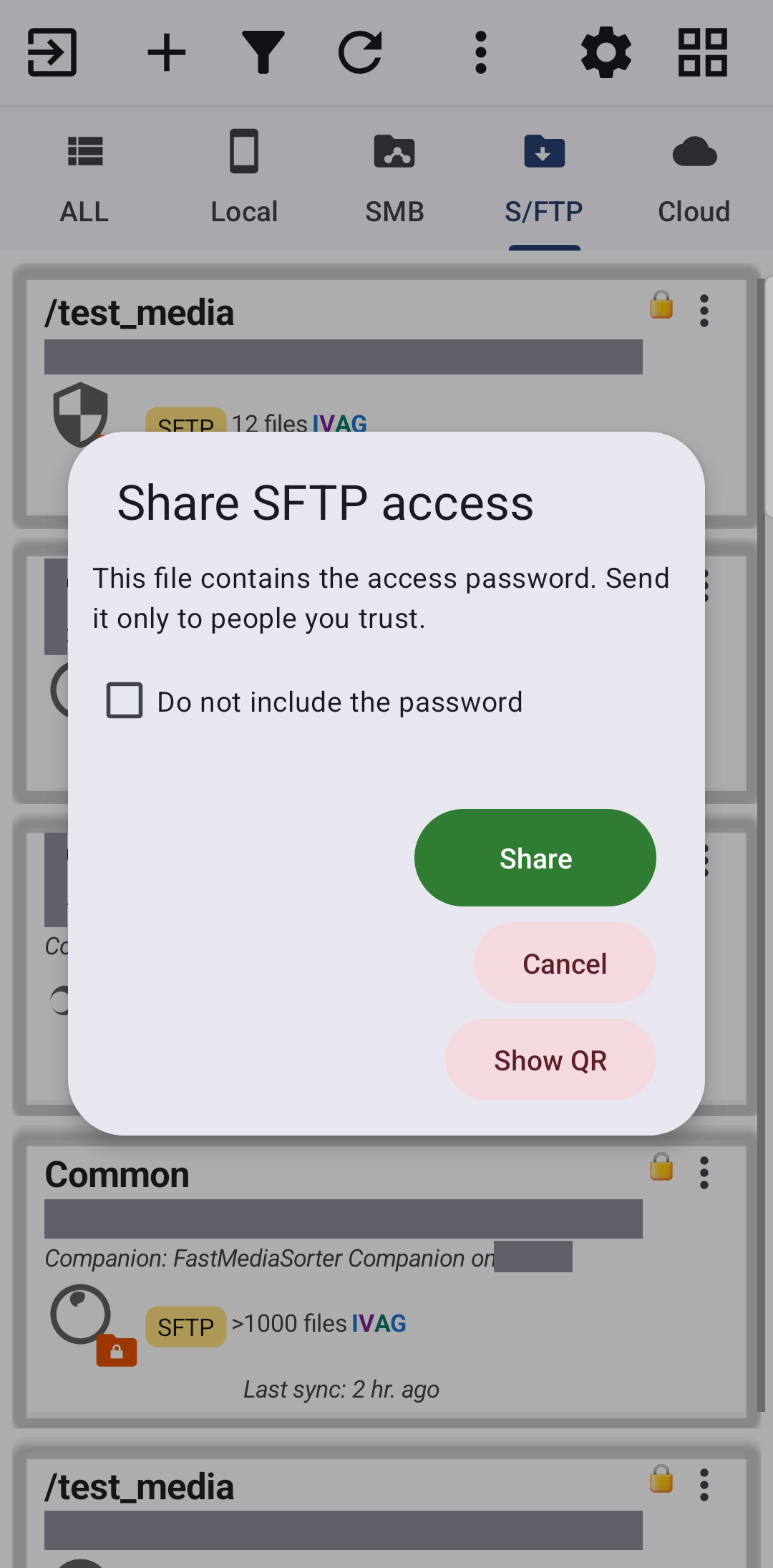
Unless you tick Do not include the password, anyone with the file or a photo of the code can open the server. If it is on your home network, the app also warns that only someone on the same network can actually connect.
Share an SFTP resource as a QR code
*Standard, Photos, Legacy and VR.*
Open the three-dots menu of an SFTP resource - one you added yourself, or one shared by the Windows companion - and tap Share access... The Share SFTP access window offers Do not include the password, then two ways to hand it over:
- Share - creates a small access file and opens the system share sheet with it, the same way you would send any file.
- Show QR - shows a QR code on screen instead: "Scan to add the resource", with the hint "In FastMediaSorter: Add resource -> Scan QR."
On the other phone, tap Add on the main screen and, under Import a ready configuration, tap Import by barcode and point the camera at the code - the resource arrives fully set up, exactly like importing a Windows companion configuration.
What You Get
One list, everywhere a file can be sent from, with every receiver named for what it really is, a switch to turn each one on or off, honest progress when a file has to come from the network or the cloud first, a shortcut to grab a file from a link, and a QR code to hand an SFTP server to another phone in seconds.
Tips and Troubleshooting
- A shared link with auto-download on opens the share screen and shows the download progress dialog properly - receiving such a link no longer closes the share screen with an error.
- Want the full picture on backing up and restoring your whole resource list? See Sharing and backing up your resources - it covers the Windows companion, Google Drive backups and moving everything to a new phone.
- Sending something you just drew or annotated? The drawing editor's own overflow menu opens this same Send to.. list - see Drawing and writing on pictures.
- A receiver you expected is missing? Check its switch in step 3 first, then make sure the app it needs is actually installed.