Browsing Media Collections
The file browser is where every resource opens: switch between grid and list, move through subfolders with a single path button, see every file with File Manager Mode, check details or lock a resource down, and reach removable drives, archives and documents that hand off to another app.
Why You'll Love This
Every resource opens into the same screen: the file browser. Whether it holds twelve photos or twelve thousand, this is where you look at what is actually inside a folder, step into subfolders, and decide what to do with each file. Knowing your way around it - the view switch, the toolbar, the menus tucked into a single button - saves you a search every time you open a resource.
Nothing on this page changes your files by itself. Turning on a setting or opening a menu only changes how the screen shows you what is already there.
- FastMediaSorter installed. The file browser is part of every edition: Standard, noLegal, Lite, Photos, Legacy, VR and FOSS.
- At least one resource added, so there is something to open. See Configuring local and removable storage if you have not added one yet.
- Installing an app straight from Browse works only in the sideload noLegal edition.
Open a resource and choose grid or list
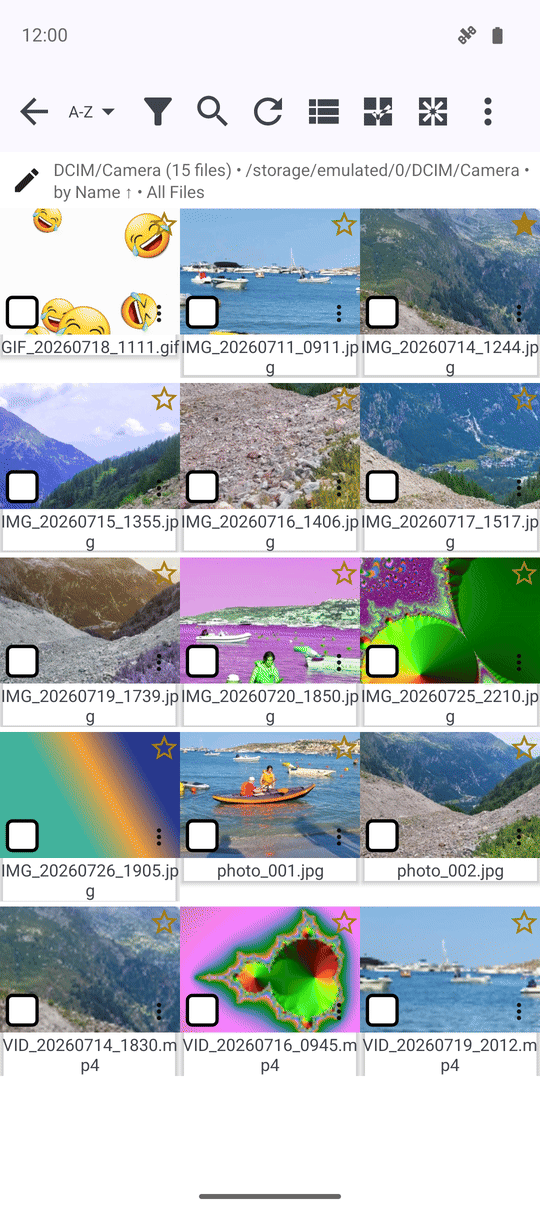
Tap a resource on the main screen to open it in the file browser. Tap View in the toolbar to switch the whole folder between grid view, with a picture tile for every file, and list view, with one line per file and more room for text. Audio-only resources always stay in list view, since there is no picture to show. Your choice is remembered separately for every resource.
Under each thumbnail or name, a second line fills in with whatever detail matters most for that file: the resolution and date taken for a photo, the resolution and length for a video, the artist and title for a song, and the size and date for everything else.
Move through subfolders with the path button
When a resource is set to look inside subfolders, folders show up as regular rows or tiles you can tap into. The current folder's name sits in a single button at the top of the screen instead of a row of names that would grow every time you go one level deeper. Tap it to open a menu listing every folder in the path, from the resource itself down to where you are now, and tap any one of them to jump straight there.
On a long list, small buttons appear on the side to jump to the top or the bottom, or to move one screen at a time; they only show up once the list is actually long enough to need them.
The file browser keeps a back-navigable trail of the folders you opened, so the device back button steps you out one level at a time instead of leaving the resource in one tap.
See every file with File Manager Mode
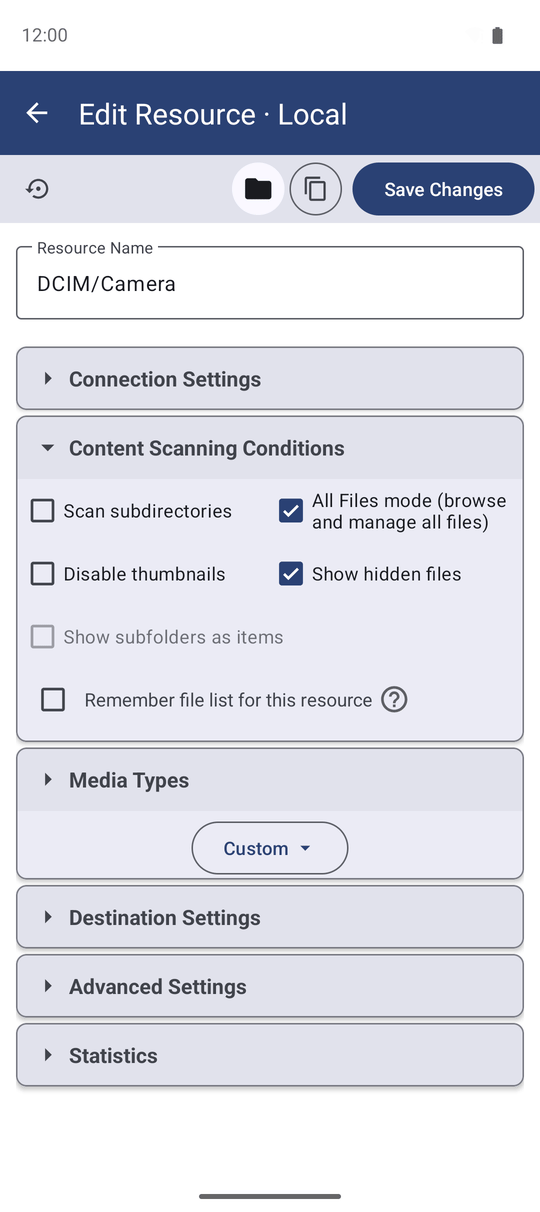
By default a resource shows only the kinds of files it is set up for - pictures in a photo folder, for instance. To see everything in a folder, including files the app does not otherwise recognize, open the resource for editing and turn on File Manager Mode. The file browser then lists every file type in that folder, overriding whatever media filter the resource normally uses.
With File Manager Mode on, a second switch appears: Show hidden files reveals files and folders whose name starts with a dot, which stay invisible otherwise. Android can still keep some app-specific folders out of reach even with both switches on.
Add a folder or a quick drawing without leaving Browse
Tap Create Folder in the toolbar to add a subfolder right where you are - on local storage, an SMB or S/FTP share, or a cloud resource alike; the button is hidden on a read-only resource. The three-dots menu also offers Create drawing, which opens a blank page in the drawing editor and saves the picture straight into the current folder - handy for a quick sketch or a note without switching apps.
The same three-dots menu has an App settings entry at the bottom, so you can adjust a setting mid-browse and come straight back instead of returning to the main screen first.
Check a file's details and mark your favorites
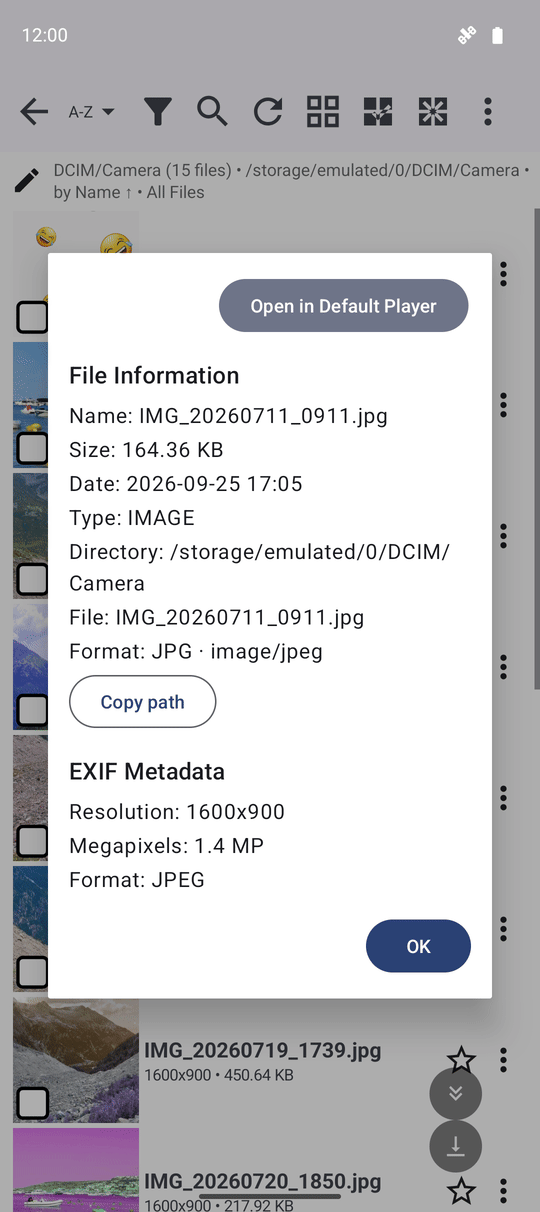
Open the three-dots menu on any file and choose its details entry to see a bottom sheet with everything the app knows about it - size, full path, and media or photo details such as resolution or camera settings where they apply.
Every row also carries its own star button: tap it to add or remove the file from Favorites on the spot, without opening the file first. The star updates immediately, right there in the list.
Play a song without opening the full player
In a music folder, tap the play button on a track's row to start it right there in the list, without opening the full audio player first. Playing a track from a network share downloads it to a local cache as it plays and quietly fetches the next track ahead of time, so the music does not stop between songs.
Lock a resource with read-only mode or a PIN
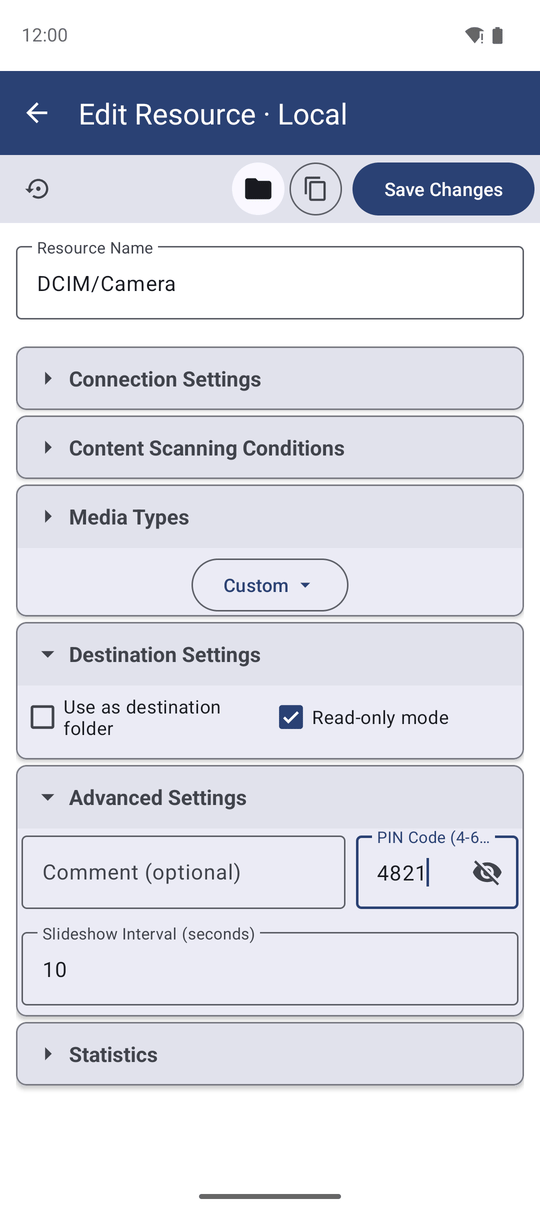
Two settings on a resource keep it from changing by accident. Turn on Read-only mode in the resource editor and every button that copies, moves, renames or deletes a file disappears from that resource; anything that tries anyway is stopped with a clear message.
Set a PIN - four to six digits, called Access PIN in the resource editor - and the file browser asks for it every time before that resource opens, with a small lock shown on its row on the main screen. This PIN only protects the resource inside the app; it has nothing to do with your device's own lock screen.
Shrink everything for a small screen
On a low-resolution phone or a device with a small display, go to Settings and turn on Compact elements. It scales the file list, the toolbar and their text down by about half, so more files fit on screen at once - the trade-off is that touch targets get smaller too. It applies across the file browser, not just one resource.
Removable drives, ZIP files and documents that open elsewhere
Plug in an SD card or a USB drive and it shows up in its own Removable media section when you add a folder, with its name and free space on the button. Confirm the volume once in the system dialog, and a resource on it browses, sorts and moves files exactly like built-in storage - a copy or move that will not fit is refused up front, naming which drive ran out of room.
Tap a ZIP file to extract it in place; a password-protected archive asks for the password first, and a wrong one or an unsupported protection is reported plainly rather than failing silently. Word, RTF, ODT and other office documents, along with protected PDFs, open by handing them to another app installed for that purpose - the row shows a small padlock when a PDF needs a password. Archives and disk images such as .iso, .7z, .rar and .dmg files carry their own registered file type too, so Open with and Share only offer apps that actually handle that format.
Opened a folder without granting full storage access? A strip under the toolbar explains that only photos, video and audio show there. It appears once, the first time it happens, and stays out of your way after that.
Files with no picture of their own
A file the app cannot preview - not a picture, a document or an archive - still gets a bottom sheet of its own when you tap it, with Share, Open in, Copy, Move, Rename and Delete. When two such files start with the same name, their shared placeholder tile now has the file's own name written across it, so they no longer look identical at a glance; on the watch that name is drawn in white with a black outline so it stays readable over any tile.
On your watch too
The watch app can browse a network folder from your wrist, and it now keeps its listings honest: opening a network source under Music, Photos or Videos shows only that kind of file instead of everything mixed together, and file types such as .mkv or .flac that used to vanish from the list now show up. A network source with a folder saved on the phone opens straight to that folder on the watch too, instead of the whole server. The paired phone itself shows up on the watch as one resource, and it no longer lists the same file twice when it is reachable two different ways. Full detail: Browsing files on your smartwatch.
Install an app you downloaded (noLegal edition)
In the sideload noLegal edition, tapping an APK file in Browse hands it to the system installer, the same as tapping one from any other file manager. If the install is refused, Browse now says why - a newer version already on the device, a different signing key, not enough free space, or a damaged file - instead of one flat error. Leaving the screen while a cloud-downloaded APK is still downloading no longer reports a false failure; the download is simply dropped.
What You Get
You can open any resource straight into the view you prefer, move through subfolders with one button instead of a growing trail, see every file when you need to with File Manager Mode, check a file's details or lock a whole resource down, and reach removable drives, archives and documents that need another app - all from the same screen you already know.
Tips and Troubleshooting
- A folder looked empty after coming back from the viewer, twice in a row? The file browser re-checks the resource itself instead of trusting a stale list, so this now sorts itself out.
- Preset resources such as All Images or Recent Media in the wrong language? They pick up the app's current language the next time you launch, instead of up to 30 seconds later.
- Want to change what a resource shows before you even open it? See Sorting, filtering and quick search for sort order, filters and quick search.