Programs tile - both watch versions; Resource, Stream, Favorites and Sections tiles and all complications - the full watch version (sideload only)
One Swipe from the Watch Face - Tiles and Complications
Add the FastMediaSorter tiles to the watch's tile carousel, point a Resource or Stream tile at the place you want, and put the Last Resource, Favorites and Now Playing complications on your watch face.
Why You'll Love This
Opening an app on a watch means pressing the button, scrolling the apps list, tapping the icon and then finding your place inside. For the one server you listen to every evening, or the radio station you start every morning, that is too long.
Tiles and complications cut it to one gesture. A tile is a whole card you reach by swiping sideways from the watch face; a complication is a small spot on the watch face itself. FastMediaSorter offers five tiles and three complications, and each one opens the watch app exactly where you need it.
- The watch app installed - see installing and pairing the watch.
- For every tile except Programs, and for the complications: the full version of the watch app. *Sideload version only* - see the noLegal edition.
- For the Resource tile: at least one network resource on the watch - sent from the phone as described in syncing the phone and the watch, or added on the watch.
- A watch face that has complication slots, for the complications.
Add a tile to the carousel
- On the watch face, swipe left to the tiles.
- Swipe to the end of the tiles and tap + (Add tile), or touch and hold any tile to edit the carousel.
- Pick one of the FastMediaSorter tiles: Programs, Sections, Resource Tile, Stream Tile or Favorites Tile.
The exact wording of the carousel editor comes from your watch maker; Google describes the standard steps in the Wear OS Help Center. You can also add and arrange tiles from the watch maker's app on the phone.
Round watch, system Add tile list scrolled to the FastMediaSorter entries.
Programs and Sections - ready-made shortcut grids
These two need no setting up: add them, and they work.
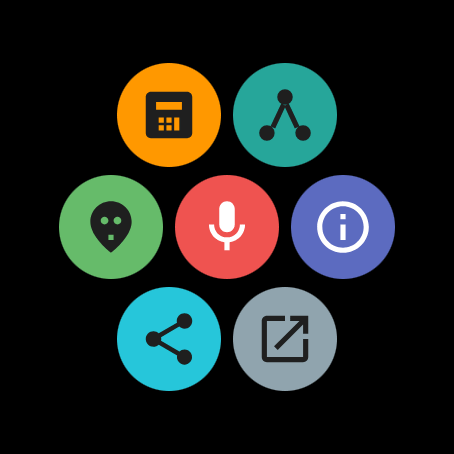
- Programs shows the built-in programs of the watch - Calculator, Network Monitor, the mini-game, the voice recorder, system information and the others - as a grid of icons. One tap opens the program. It is the one tile the Google Play version carries too. While the stopwatch runs, the tile says so above the grid, and its Open chip takes you back to the running timing.
- Sections shows the sections of the watch app: Resources, Phone, Local, Streams, Apps and Favorites. Streams appears only while that section is switched on.
A grid has room for seven icons. When there is more to show, the last cell reads More and opens the watch app, where the rest are listed.
Point a Resource or Stream tile at its target
*Sideload version only.* A freshly added Resource Tile says No resource assigned, and a Stream Tile says No stream assigned. Tap Select Target on the tile.
The watch app opens a list - Select Resource with your network resources, or Select Stream with your channels. Tap the one you want. From now on the tile shows its name, and one tap opens that resource or starts that stream, with or without the phone nearby.
If the list is empty, the watch says what to do: "No resources found. Add a network resource on watch or sync from phone." for resources, "No streams found. Add a stream or sync catalog from phone." for streams.
To change a target later, open Settings on the watch and then Tile Targets: it lists each tile with its current target, or Not selected, and lets you pick again. If a target is deleted, the tile says Target no longer exists until you choose a new one.
Round watch, Select Resource picker, three network resources listed.
Keep your favorites on a tile
*Sideload version only.* The Favorites Tile lists the files and channels you marked with the heart on the watch - your Favorites. Tap one to open it. Nothing marked yet? The tile says No favorites marked; tap the heart while a file plays to add it.
Put a complication on the watch face
*Sideload version only.* Touch and hold the watch face, tap Customize (or the pencil), move to the complication slots and tap the one to fill. Choose FastMediaSorter and one of its three complications:
- Last Resource - "Shortcut to open the most recently used media resource". Shows its name; a tap opens it.
- Favorites - "Shows favorites count and opens favorites list".
- Now Playing - "Shows currently playing or last played track". A tap brings you back to the player.
Which slots exist and how the editor looks depends on your watch face; the Wear OS Help Center describes the usual steps. The word "complication" appears only in that editor, never in the app itself.
On the separate FastMediaSorter Watch Face, a free watch face for Wear OS 6 and newer, the up to eight round buttons are complication slots too: set each one in the face editor on the watch, or from the phone's Wear settings, and choose FastMediaSorter shortcuts or other watch data. The buttons appear together with the FastMediaSorter watch app.
Round watch face with one complication slot filled by Now Playing, a track title visible.
What You Get
Your programs, your sections, the one network folder you use most, your favorite station and the track playing right now are each one swipe or one tap from the watch face.
Tips and Troubleshooting
- A tile opens the home screen instead of the resource? Update the watch app: tapping the Resource tile opens the pinned resource directly.
- Tiles speak your language. The Favorites tile and the grids follow the language of the watch app.
- No Streams cell on the Sections tile? Turn on Show streams in the Media types group - on the watch, or in the Wear Companion window on the phone.
- Want a station on the phone's home screen too? See shortcuts, the widget and the streams panel.