Choosing a Desktop Wallpaper - Animated Waves, a Still Frame, Your Photo or a Live Camera
The launcher desktop can draw six kinds of wallpaper, from the moving waves and particles of the FastMediaSorter brand to your own photo or a live camera view. This page shows how to choose one and tune it.
Why You'll Love This
The wallpaper is the first thing you see on the desktop, so it should suit the place: calm and still on a bedside tablet, lively on a kitchen display, a family photo on a photo frame, or even the view from the camera on a device standing by the window.
All wallpaper choices sit on one screen, each with a sentence saying what it does, and the app looks after the battery for you.
- FastMediaSorter in the Standard edition or the noLegal edition, with the launcher desktop open - see Your launcher desktop.
- For your own wallpaper: a picture or an animated GIF on the device.
- For the camera wallpapers: a device with a camera, and your permission for the app to use it.
Open the Screens and wallpaper screen
Touch and hold an empty square on the desktop and tap Wallpaper. The Screens and wallpaper screen opens.
You can reach the same screen from the launcher settings: Settings, General, System launcher settings, the Appearance group, Screens and wallpaper.
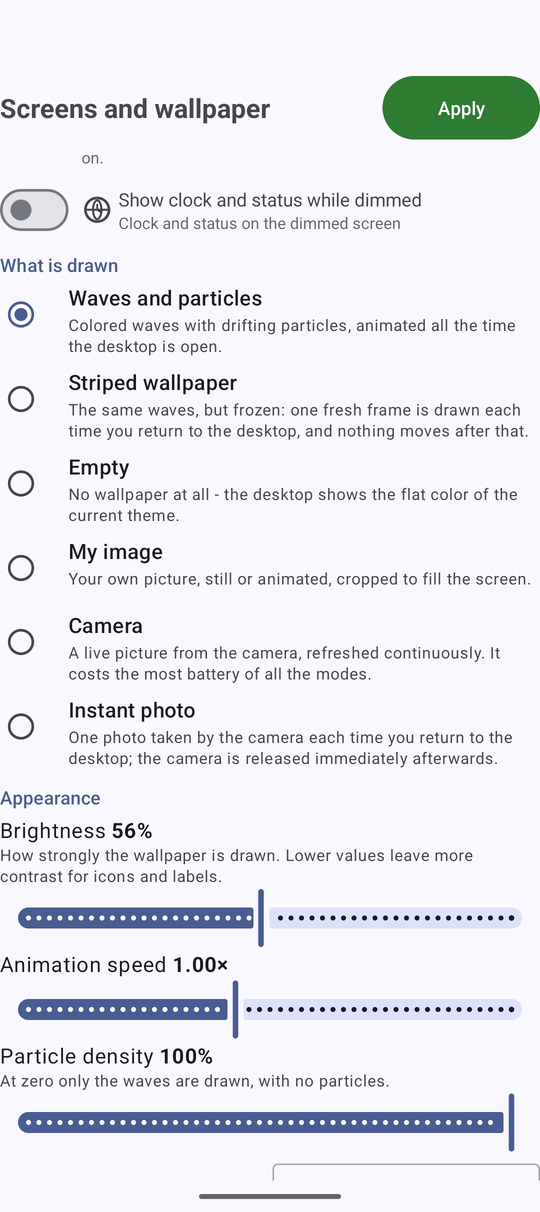
Pick what is drawn
Under What is drawn choose one of six modes:
- Waves and particles - colored waves with drifting particles, moving the whole time the desktop is open. This is the starting choice.
- Striped wallpaper - the same waves, but frozen. A fresh frame is drawn each time you come back to the desktop, and nothing moves after that.
- Empty - no wallpaper at all; the desktop shows the plain color of your color theme.
- My image - your own picture, still or animated, cropped to fill the screen.
- Camera - a live picture from a camera, refreshed all the time. This mode uses the most battery.
- Instant photo - the camera takes one photo each time you come back to the desktop and is released straight away.
Use your own picture or animated GIF
Select My image, then tap Choose under Source and pick a picture. A preview shows what you chose.
The app keeps its own copy of the picture, so the wallpaper stays even if you later move or delete the original file. Animated GIFs keep moving on the desktop. If a file cannot be used, the screen says Could not use this image and the previous wallpaper stays.
Launcher desktop with My image selected, a landscape photo as the wallpaper, portrait.
Camera keeps the camera running while the desktop is visible. On a device that runs on battery, Instant photo gives you a fresh picture at a fraction of the cost.
Show a live camera picture
Select Camera or Instant photo. If the device has several cameras, a list Choose a camera appears so you can pick the lens; Choose under Source changes it later. The first time, Android asks whether the app may use the camera - allow it.
These two modes are offered only on devices that have a camera. The camera is released as soon as the desktop leaves the screen. If there is no camera or you decline the permission, the desktop quietly goes back to Waves and particles.
Tune brightness, speed, particles and colors
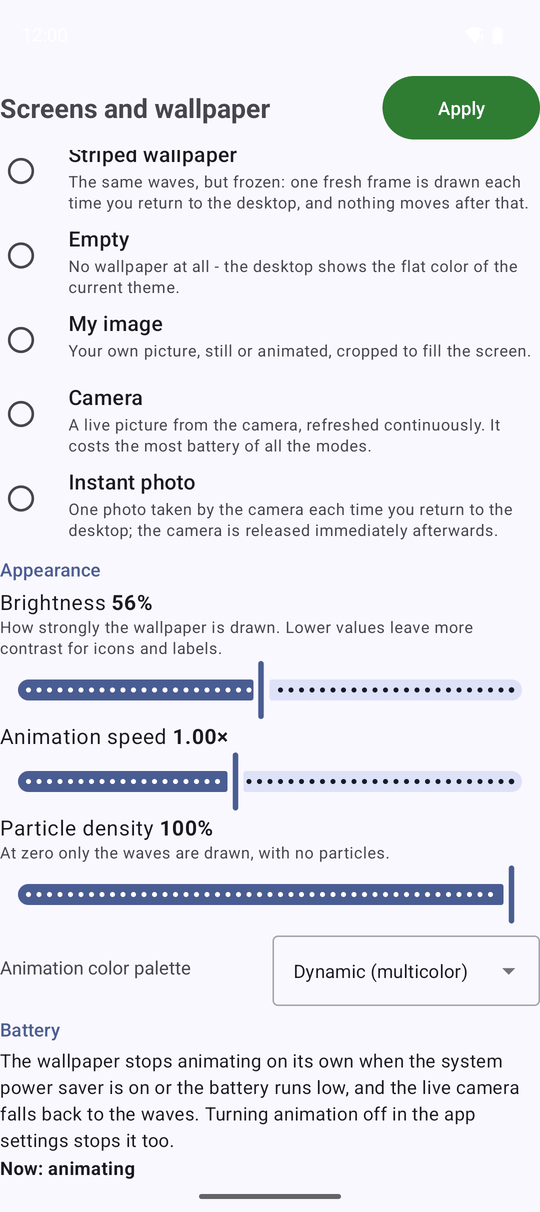
Under Appearance on the same screen:
- Brightness - how strongly the wallpaper is drawn. Lower values leave more contrast for icons and captions.
- Animation speed - how fast the waves move.
- Particle density - how many particles drift over the waves. At zero only the waves are drawn.
- Animation color palette - Dynamic (multicolor), Greenish, Pinkish or Blueish. The same palette colors the animated background of the audio player.
Let the wallpaper show through the squares
Shortcuts on the desktop have no card behind them: the wallpaper shows through the whole grid, and each icon and caption carries a thin outline so it stays readable over a bright, dark or busy picture. The whole square stays tappable.
Gadgets keep a light card. To make that card more or less solid, open the launcher settings, the Appearance group, Widget backdrop opacity, and pick from 0% (Transparent) to 100% (Opaque); 25% (Default) is the starting value. While you arrange the desktop every square shows a full card, so its edges are easy to see.
What You Get
The desktop shows the wallpaper that suits the place - moving, still, your own photo or the camera view - at the brightness and colors you like, with every icon still easy to read.
Tips and Troubleshooting
- The waves stopped moving? The wallpaper stops on its own when the system power saver is on or the battery runs low, and a live camera falls back to the waves. The Battery block at the bottom of the screen explains this and shows the current state: Now: animating, Now: reduced to save power or Now: stopped to save power.
- Want motion without the battery cost? Striped wallpaper looks like the animation but draws only one frame each time you return.
- Your wallpaper choices travel with you. They are part of the settings backup, so restoring a backup on a new device brings them back - see Backing up and restoring settings.